How to Send a Year-End Email Campaign to Your Whole List
The end of the year is one of the best times to email your contacts. People are looking back, planning ahead and paying attention to the businesses they work with. One well-timed email can thank your customers, remind past leads you’re here, and set up a strong start to the new year.
In MarTech by Ajax Union, a year-end message is a regular email campaign: a one-time broadcast you design, test and send now or schedule for later. This guide walks you through it.
Before You Start
Verify your sending domain. You need a verified domain to send email campaigns. If you haven’t set one up, see how to set up a dedicated email sending domain and how to verify your from email address.
Decide who gets it. “Your whole list” rarely means everyone. Leave out contacts who unsubscribed, and consider separate versions for customers and leads. Smart Lists make this easy.
Pick one main message. A thank-you and year in review, your holiday hours, or a look at what’s coming next year all work well. One clear message beats five competing ones.
Step 1: Create the Campaign
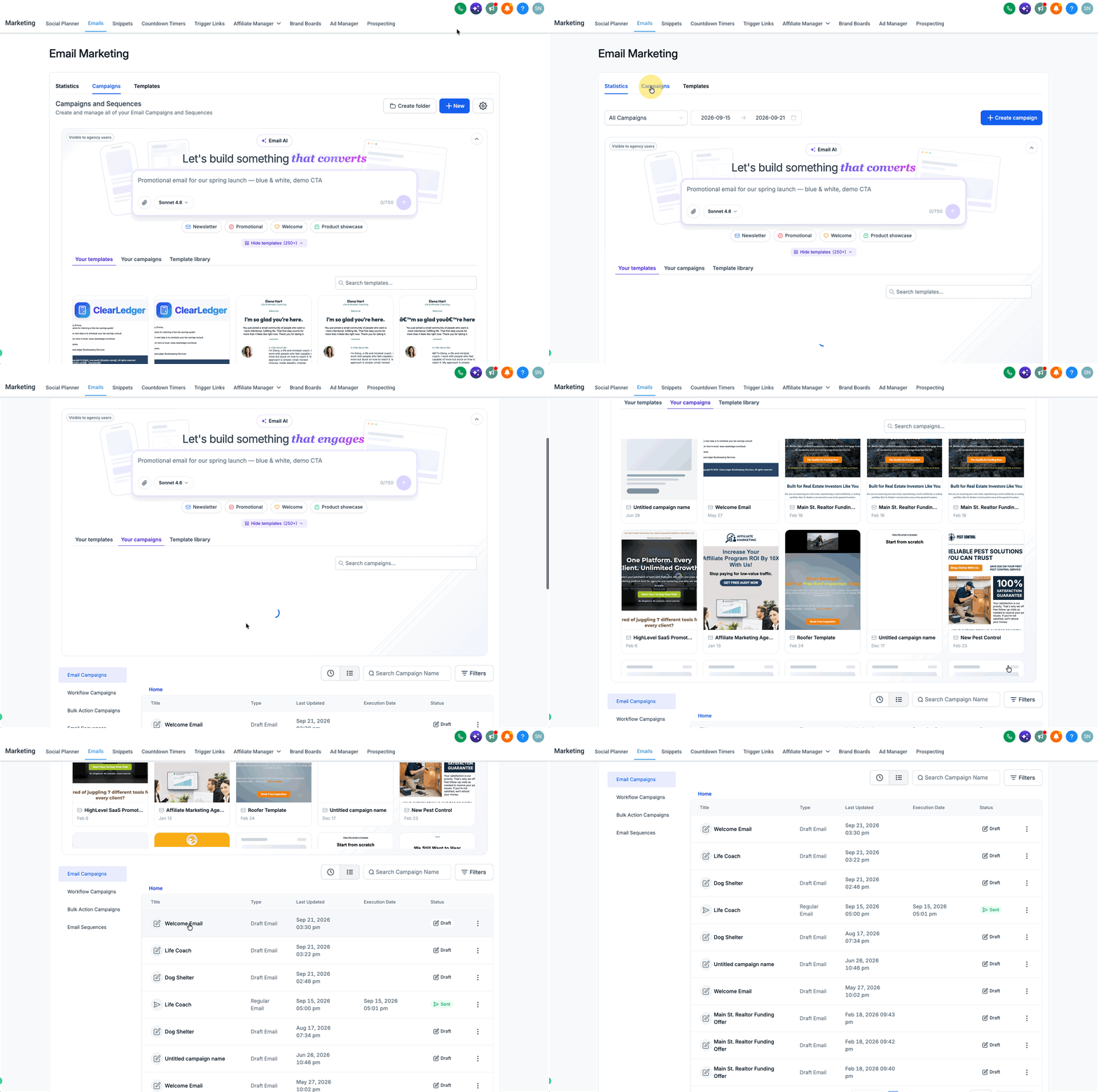
Log in at app.ajaxunion.com and go to Marketing → Email → Campaigns.
Create a new campaign, or open an existing one to edit.
Step 2: Design the Email
Build a new design or choose a template.
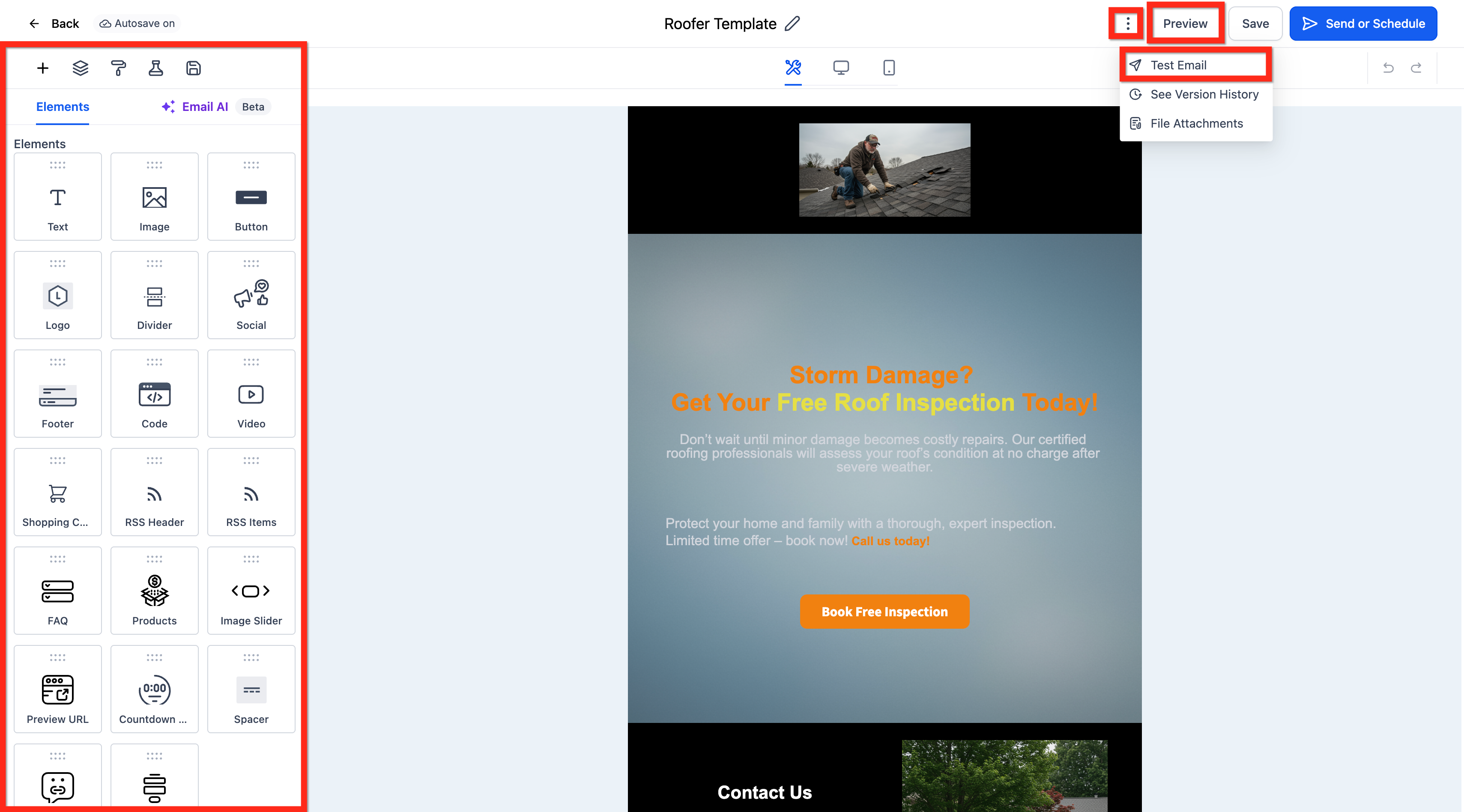
Add your content, images and links.
Use Preview and Test Email to check how it looks on desktop and mobile before you send. Our guide to previewing and testing email templates covers what to look for.
Personalize the greeting with merge fields such as {{contact.first_name}}, and keep a single clear call to action, like booking a time for January.
Step 3: Send Now or Schedule
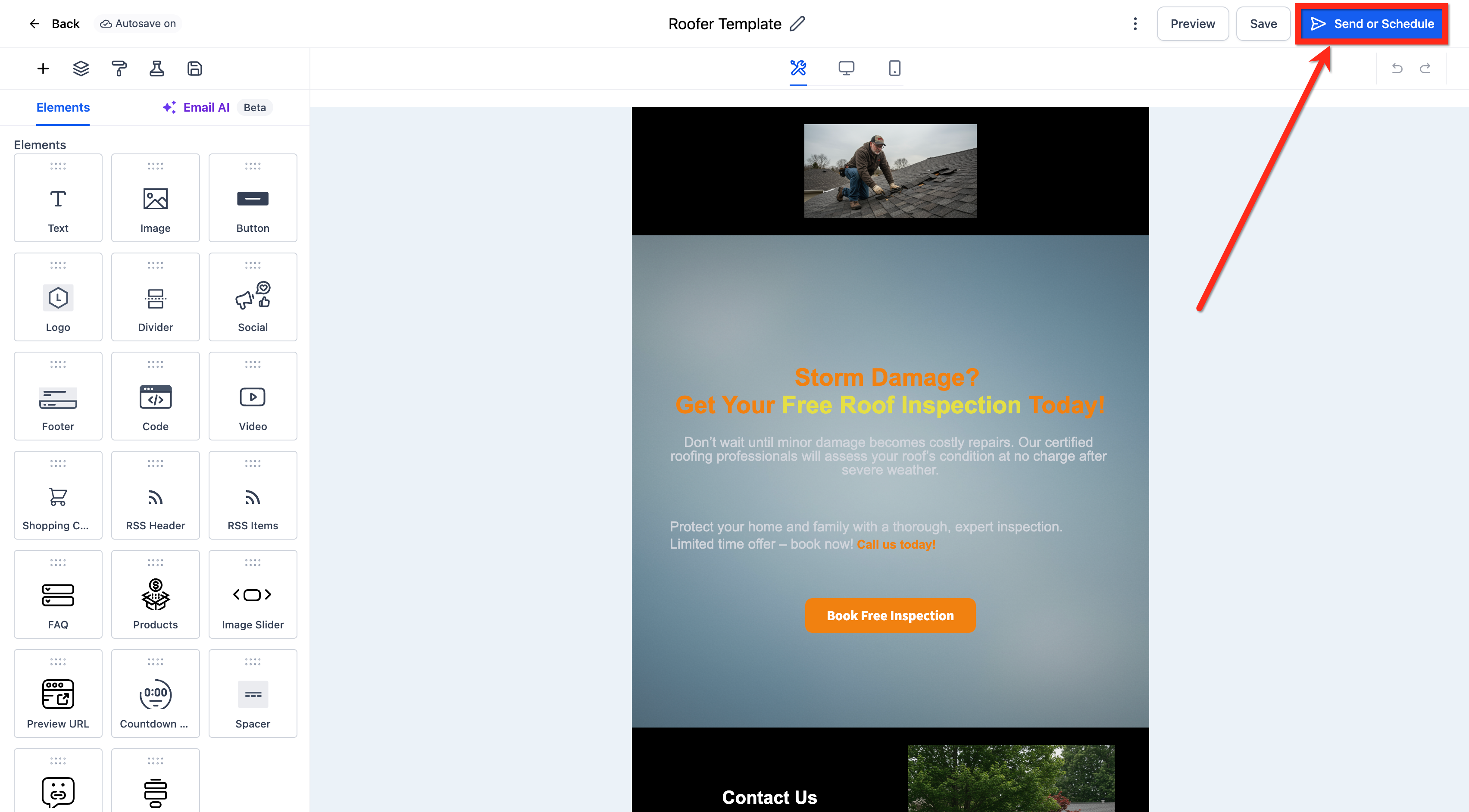
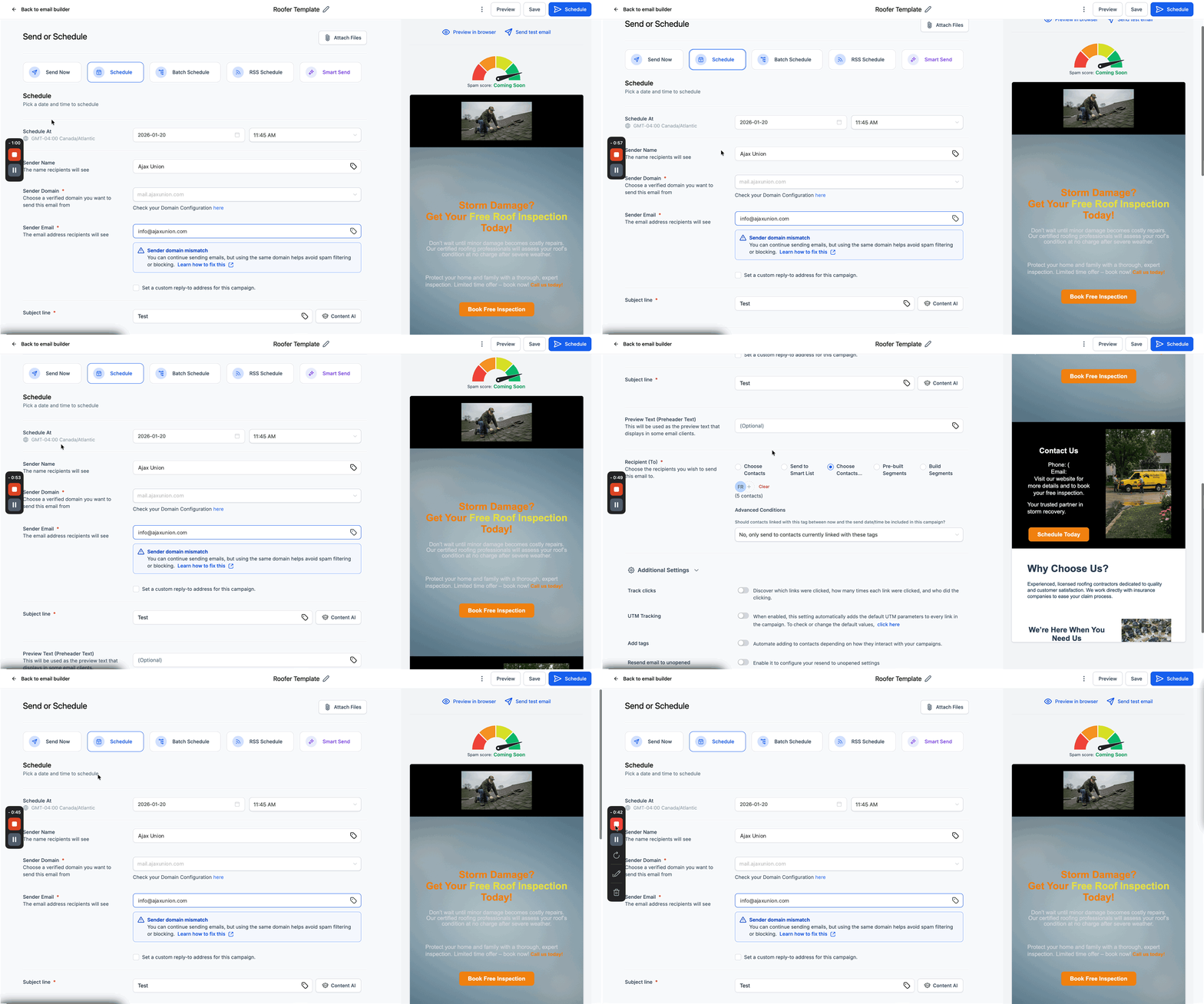
Click Send or Schedule. If you want to include a file, click Attach Files on this screen and add it (up to 10 MB in total).
To send right away:
Enter the Sender Name.
Review the Sender Domain.
Enter the Sender Email.
Write the Subject Line.
Add your Recipients, such as the Smart List you built for this campaign.
Set any Additional Settings you need, such as link tracking, UTM tracking or tags.
Click Send.
To schedule it for later:
Choose the date and time. Campaigns send in your account’s time zone.
Complete the same sender, subject, recipient and settings fields as above.
Click Schedule.
Timing Tips for Year-End Emails
Send before the holiday rush. Early to mid-December gives your email room to be read before inboxes fill up.
Avoid the holidays themselves. Many people don’t check email on holidays or the days right around them.
Schedule it early. Build it now, schedule it, and it goes out on time even if your December gets busy.
Tag the recipients. Adding a tag such as “year-end 2026” in Additional Settings makes it easy to follow up with everyone who received it.
Frequently Asked Questions
Can I change the send time after scheduling? Yes. You can reschedule a campaign up to one hour before it is set to send.
What’s the difference between a campaign and a workflow? A campaign is a one-time broadcast. A workflow automates a series of steps, such as emails, based on triggers and conditions.
Can I go back to an earlier version of my email? Yes. In the campaign editor, open the three-dot menu and choose See Version History.
If I send to a Smart List, who is included? The list is built at the moment the email sends, so anyone who matches the filters at that time receives it.
Want to see MarTech in action? Book a live demo and our team will walk you through it.
