
How to Set Up a Dedicated Email Sending Domain in MarTech
Every email you send is a reflection of your business. If it lands in spam, or shows up looking like it came from someone else, you lose trust before the message is even opened. A dedicated sending domain fixes that. It tells inbox providers exactly which servers are allowed to send mail for your brand, which helps you stay out of spam folders, protect your reputation, and get more of your emails delivered.
This guide walks you through what a dedicated sending domain is, how to set one up in MarTech, and how to fix the most common problems along the way.
Before you start: Dedicated sending domains are only available to accounts using the LC Email system. If your domain is brand new, warm it up by sending to smaller groups first before you email large lists. A cold domain that suddenly sends thousands of emails is likely to see poor deliverability.
Using an outside email provider instead? You can connect a third-party SMTP provider rather than using LC Email. See our guide to setting up SMTP providers.
What is a dedicated sending domain?
When you first start sending email from MarTech, your messages go out through MarTech's shared sending servers. Because of that, your recipients' email apps show those shared servers in the "sent via" or "sent on behalf of" line of the message header.
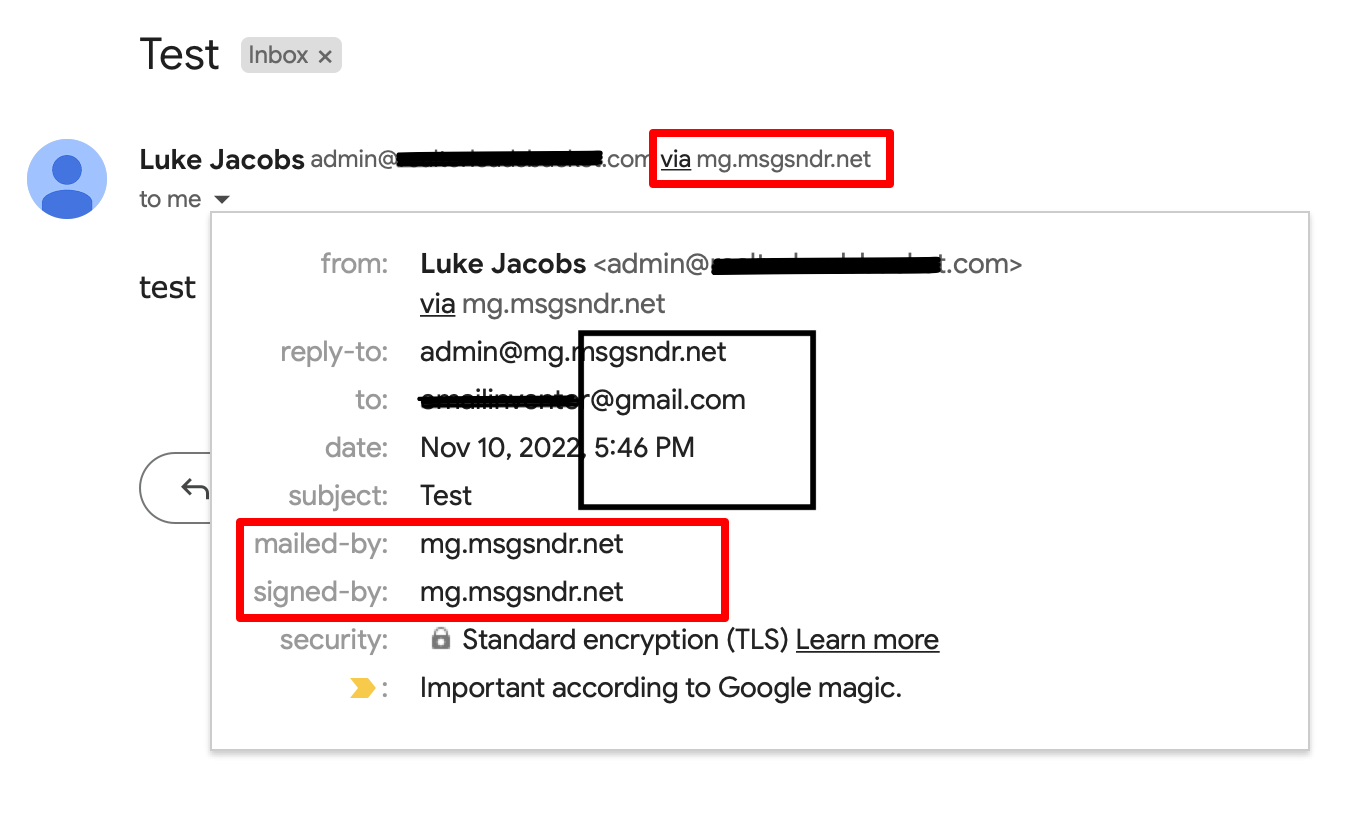
A dedicated sending domain changes this so your emails come from your own brand instead. Recipients see a consistent, trustworthy sender, and your sender reputation is tied to your own domain rather than shared with other senders. Both agencies and sub-accounts can set one up, and it only takes a few minutes.
You are not limited to one. You can create several sending domains and assign different ones to different kinds of email: one-to-one emails, workflow emails, marketing campaigns, and payment and invoice emails.
What is a subdomain?
A subdomain is a variation of your main (root) domain. If your root domain is agency123.com, you could create subdomains such as emails.agency123.com or no-reply.agency123.com. You can make as many subdomains as you need and use different ones for different campaigns or types of messages.
How to set up a dedicated sending domain
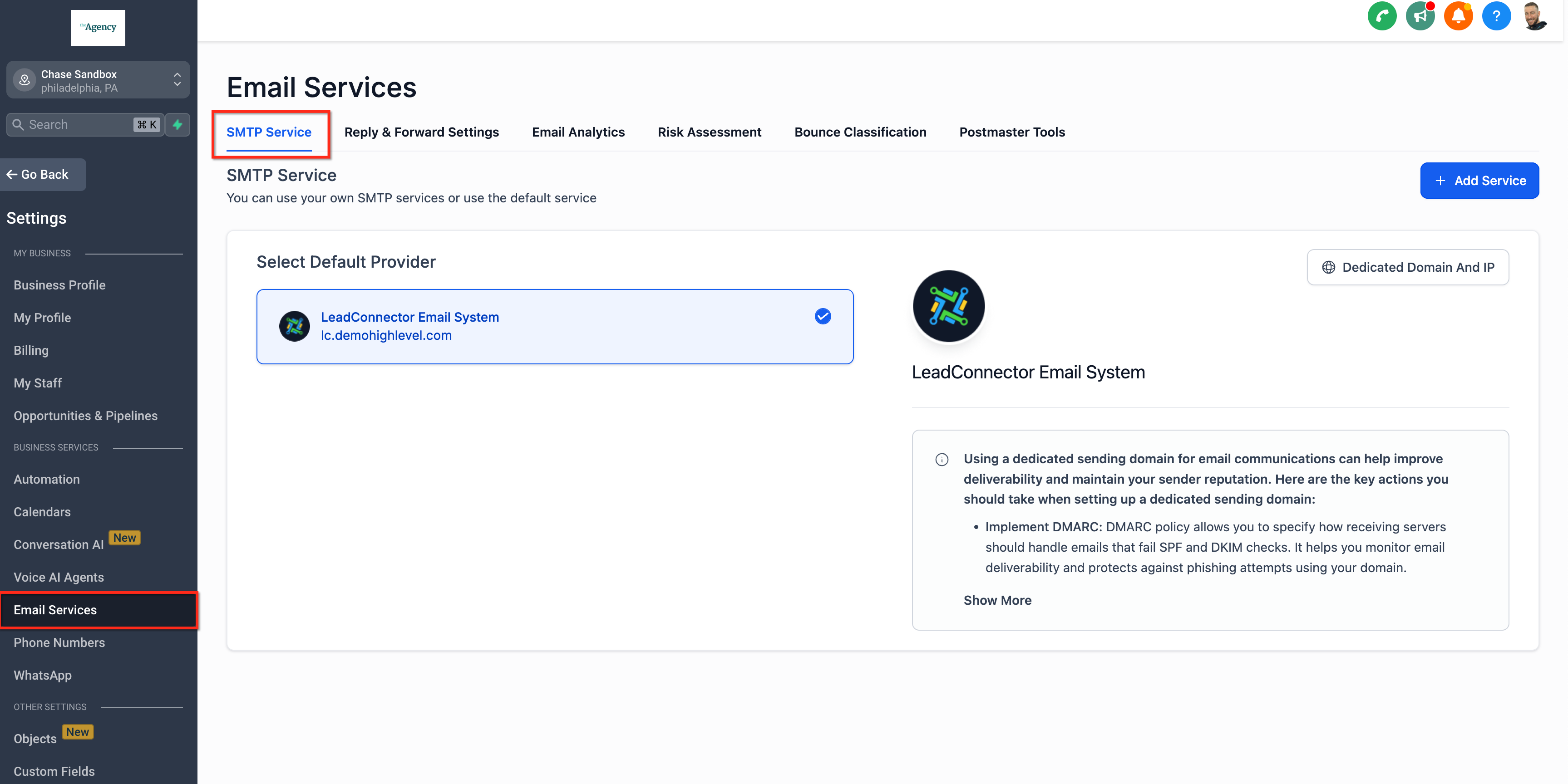
Log in at app.ajaxunion.com and go to Settings → Email Services.
Click the Dedicated Domain and IP tab.
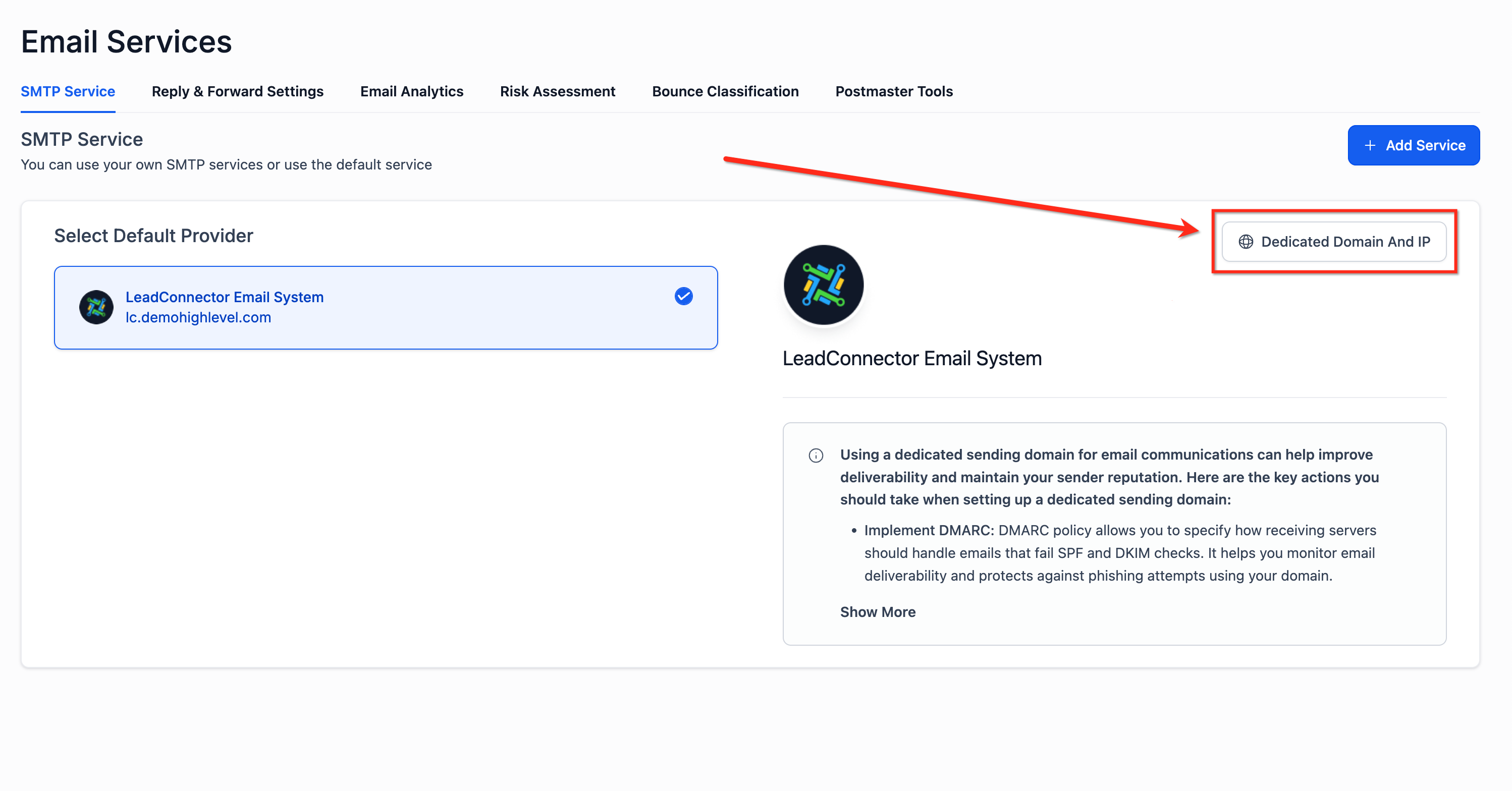
Click Add Domain to start the setup.
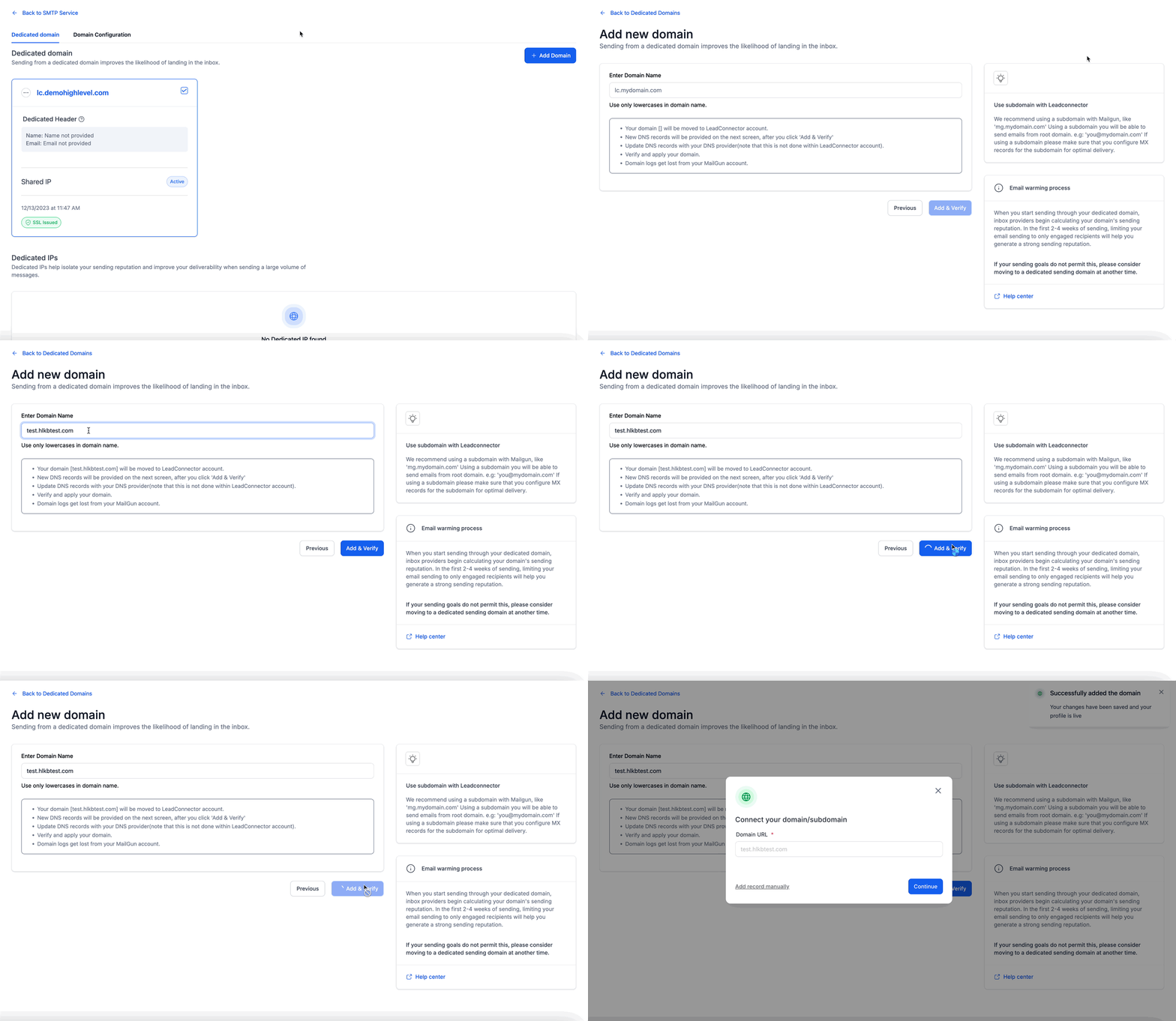
Enter the subdomain you want to send from (for example, mg.yourbrand.com).
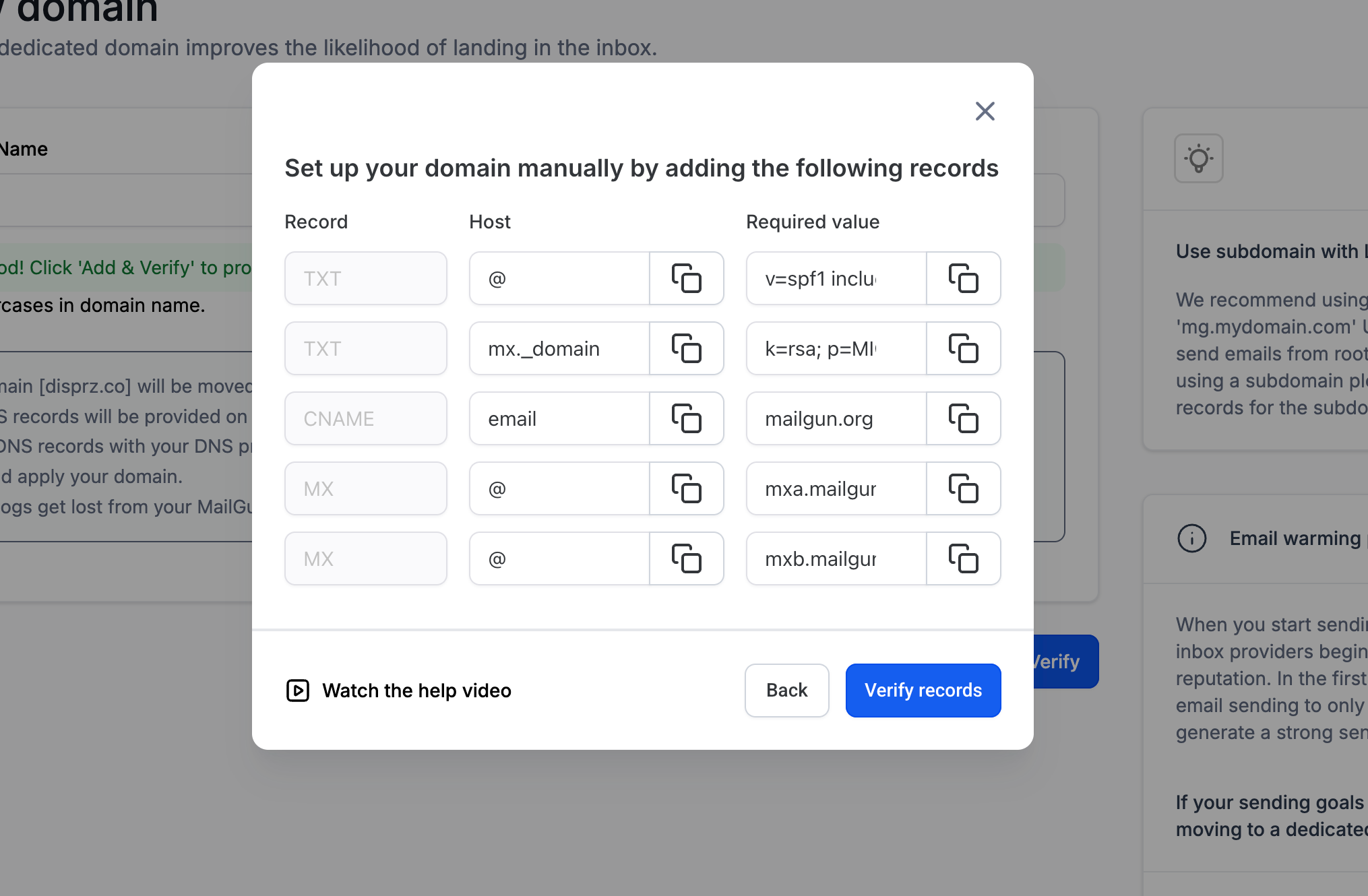
Verify your DNS records. MarTech can configure these for you automatically. If automatic setup isn't available for your domain, add the records yourself using the steps in the next section.
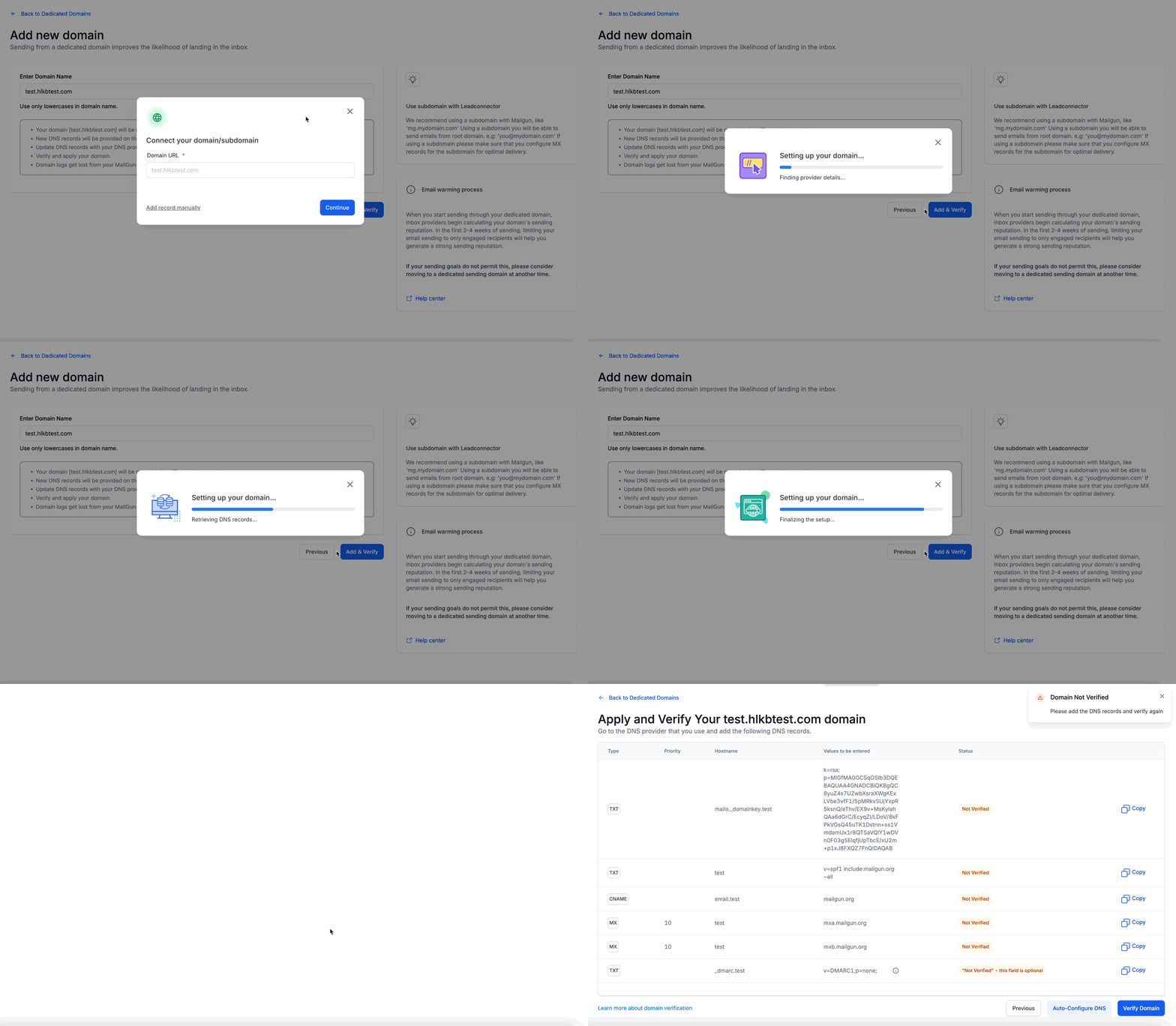
Give the changes time to take effect. DNS updates can take up to 24 hours to spread across the internet. If more than 24 hours have passed and your domain still isn't verified, review your DNS settings again.
Important: Your domain can only have one DKIM record. Multiple DKIM records for the same domain are not supported.
How to add DNS records manually
Copy the DNS record values that MarTech displays for your domain.
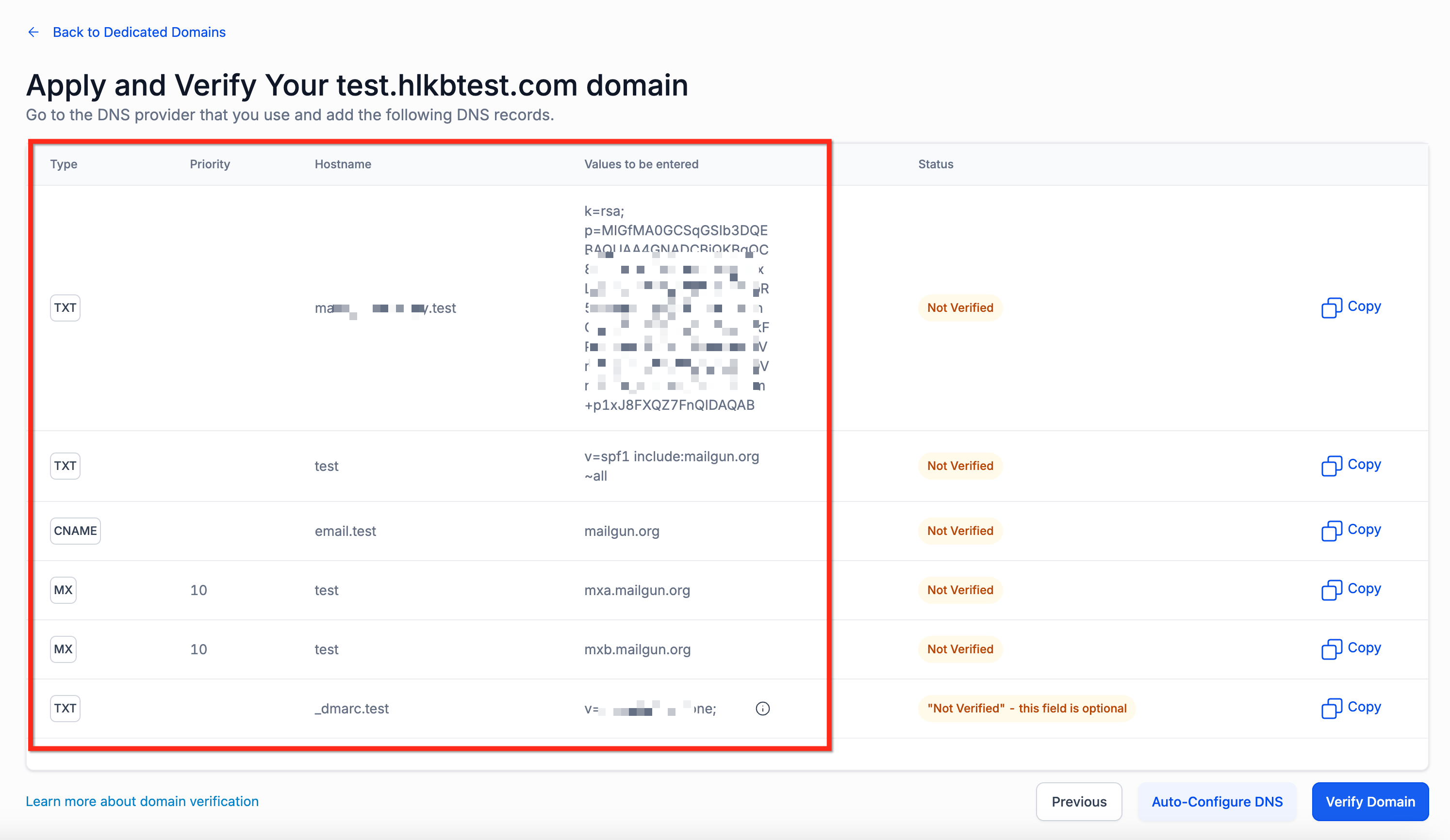
Log in to the dashboard of the company that hosts your domain and create each record using those exact values.
Go back to your MarTech settings and verify the records from the settings panel.
Step-by-step instructions are available for the most common DNS providers, including GoDaddy, Google Domains, HostGator, Hover, Namecheap, AWS Route 53, Cloudflare, Bluehost, Hostinger, and InMotion.
How to use a dedicated domain for calendar emails
Appointment confirmations, reminders, and reschedule notices are time-sensitive. If they miss the inbox, people miss appointments. You can give calendar emails their own dedicated sending domains to keep their deliverability strong.
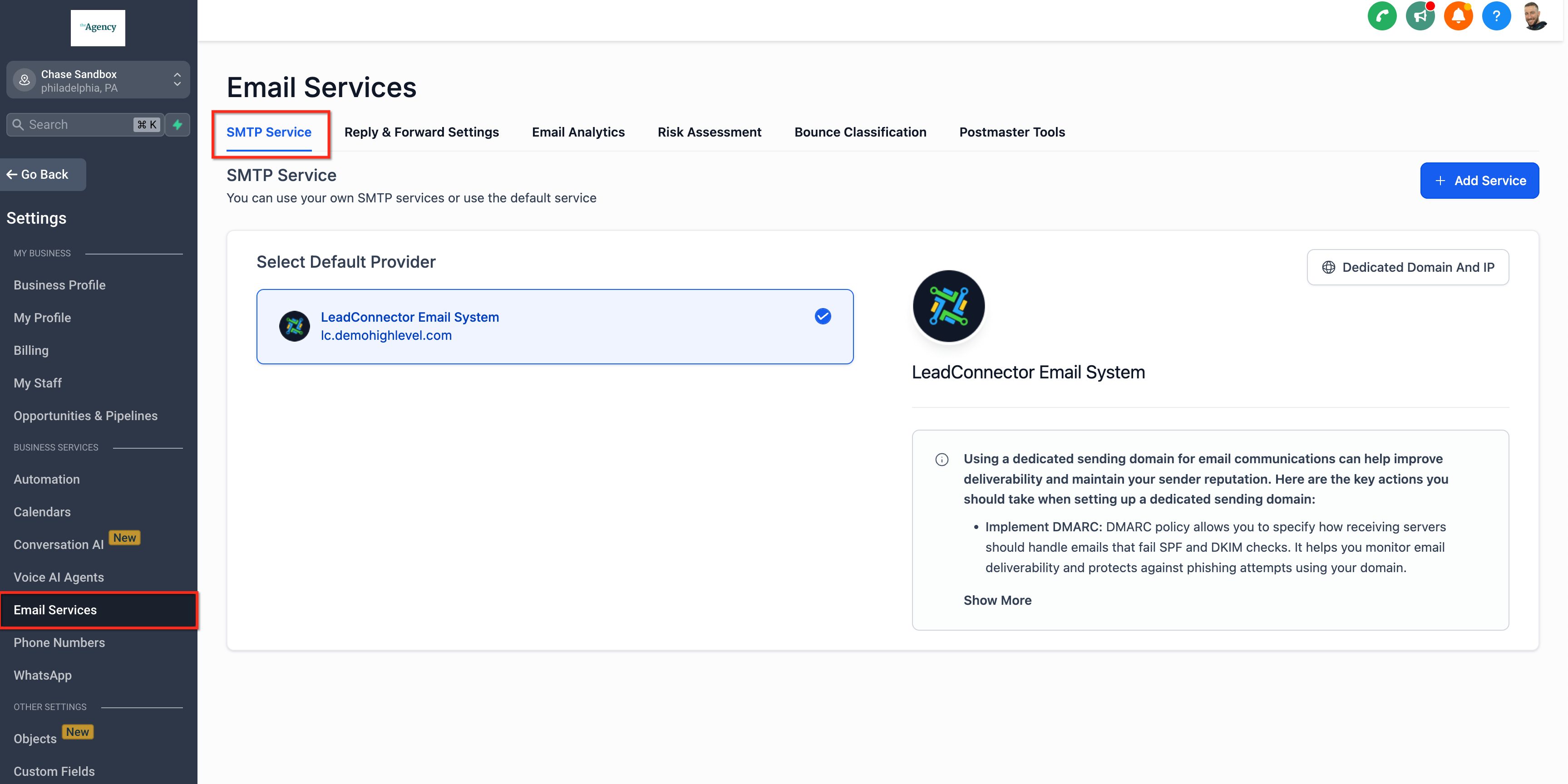
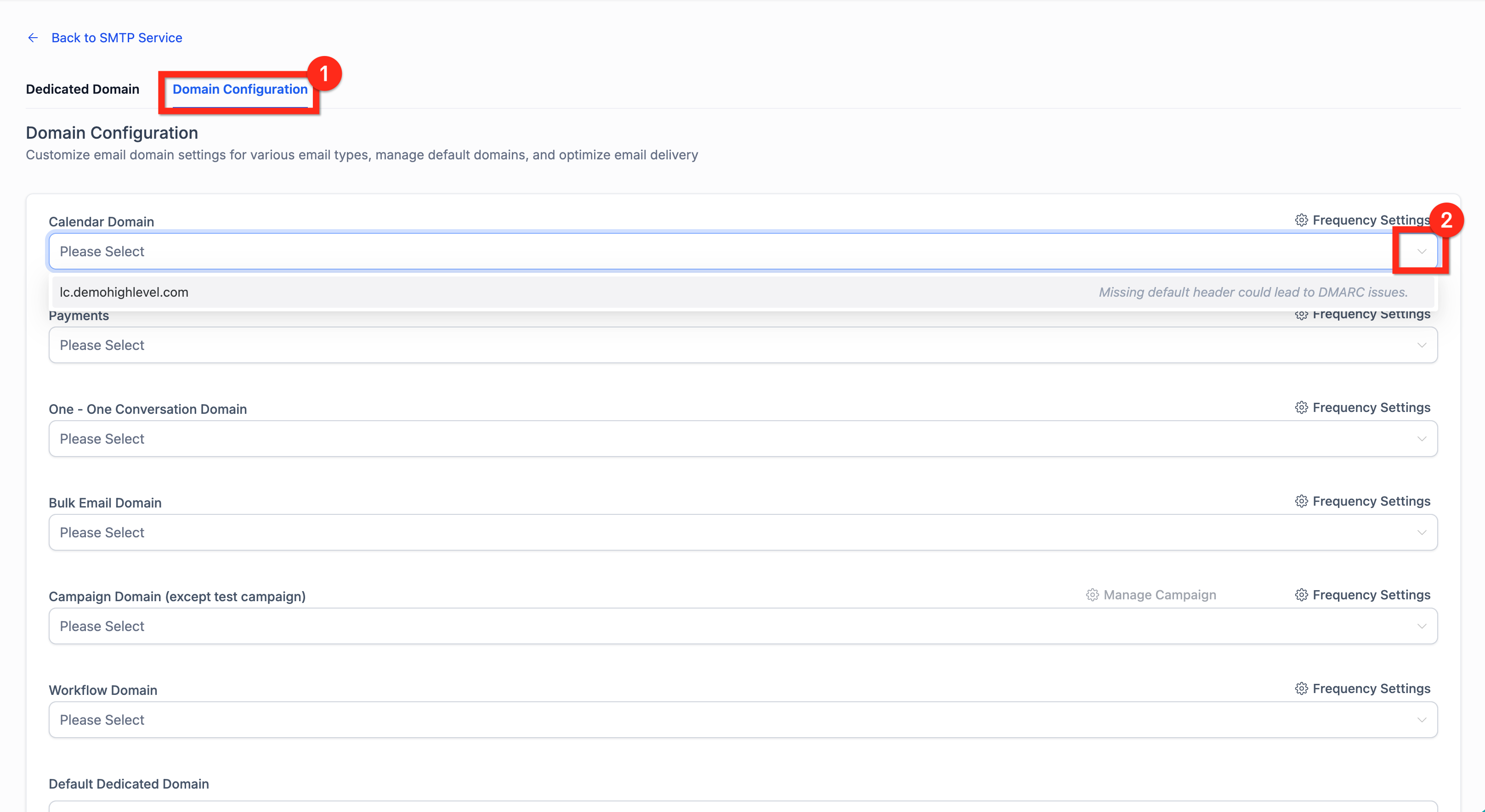
Go to Settings → Email Service → SMTP Service.
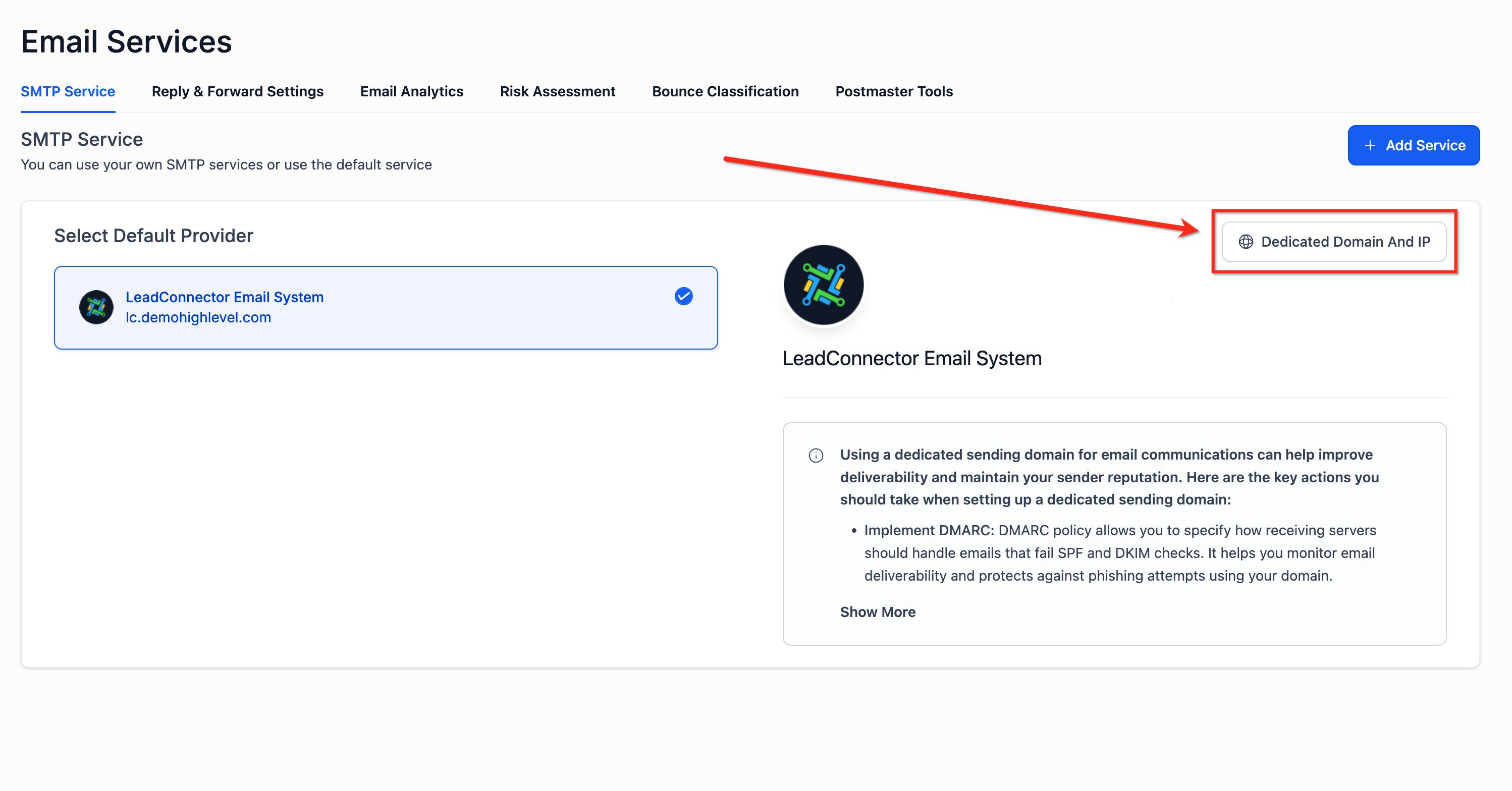
Select Dedicated Domain and IP.
Under Domain Configuration → Calendar, add up to five domains.
If you added more than one domain, set what percentage of calendar emails each domain should send.
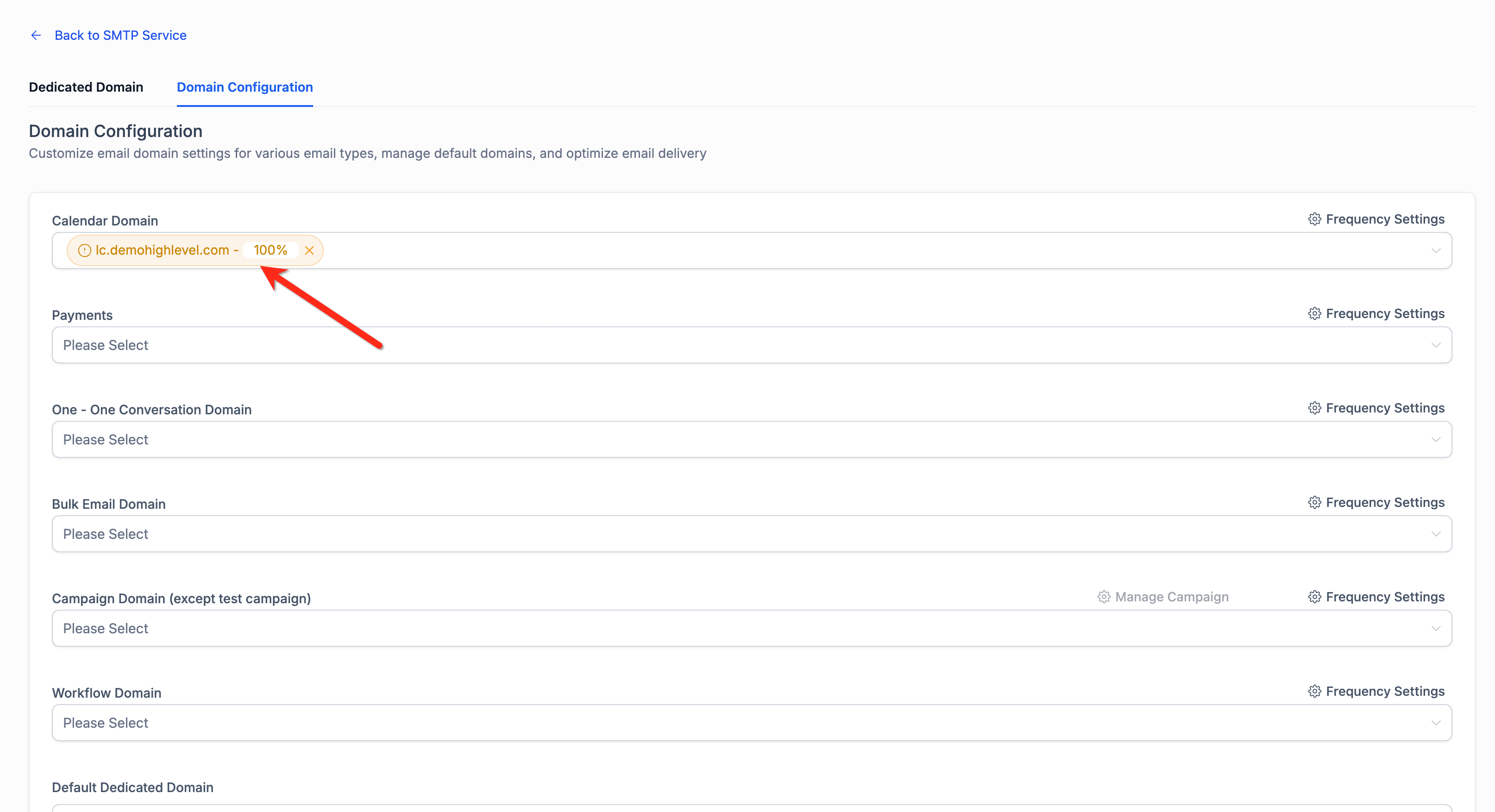
Keep in mind that only domains created at the sub-account level will appear as options here, and this feature is available to LC Email users only.
How to track Gmail deliverability with Google Postmaster Tools
Google Postmaster Tools is a free dashboard that shows how Gmail sees the email coming from your dedicated sending domain. You can track your domain and IP reputation, spam rate, authentication results, and delivery errors, which makes it much easier to figure out why emails aren't reaching the inbox.
Go to gmail.com/postmaster and sign in with a Google account.
Add your domain (for example, yourbrand.com or mail.yourbrand.com).
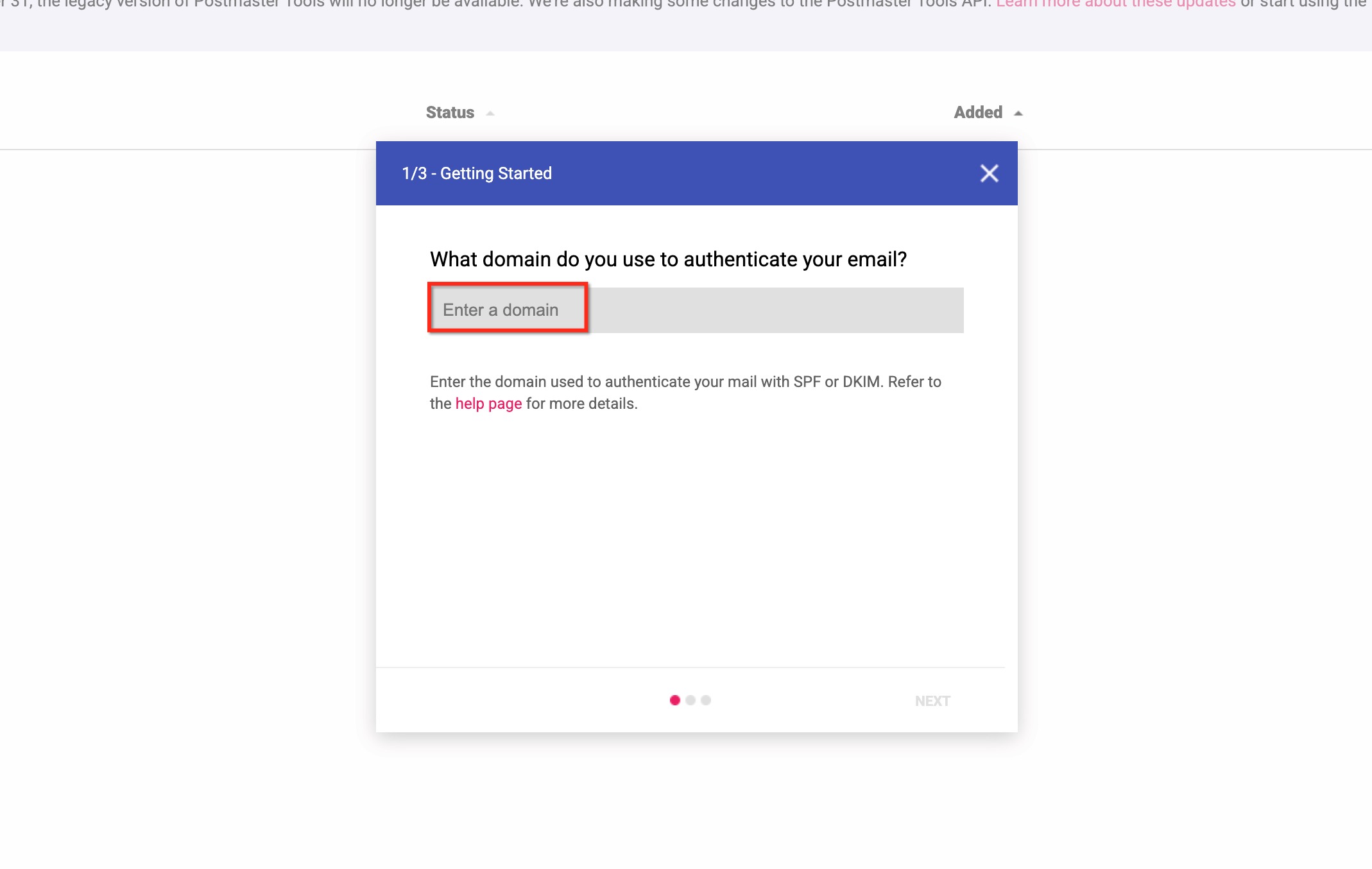
Choose Verify and copy the TXT record Google gives you.
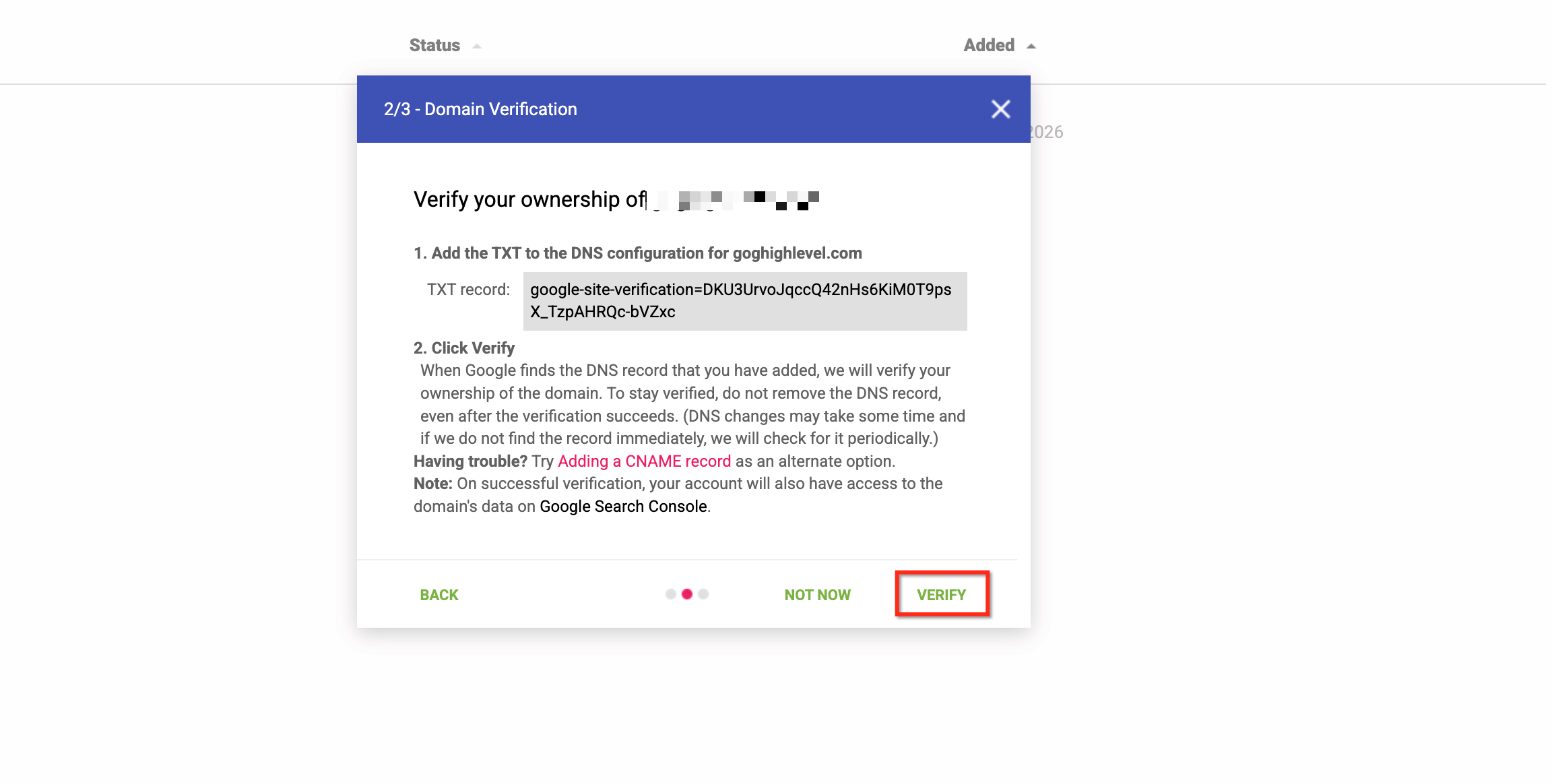
Add that TXT record to your DNS host exactly as it appears, then save it.
Return to Google Postmaster Tools and finish verification. It may take Google a while to detect the new record.
Start sending email from MarTech using your verified dedicated domain.
Once Google has collected enough sending volume, review the Domain Reputation, IP Reputation, Spam Rate, Authentication, and Delivery Errors dashboards.
What happens to your emails on a shared domain
If you don't set up a dedicated domain, your emails go out through a shared sending domain, either one owned by MarTech or an Agency Shared Domain. In that case, MarTech automatically adjusts the address your email is actually sent from so it matches the shared domain.
Your From address stays the same in your settings, but behind the scenes MarTech rewrites the sending address using a "plus" format. Here's an example:
From address (as you set it):[email protected]
Shared domain (account level):mg.msgsndr.com
Address actually used:[email protected]
Who this applies to
This applies to all agency sub-accounts created after August 26th, along with every location under those agencies that uses a shared domain. Refactoring is scheduled to be applied automatically to existing agencies within two weeks. For now, existing agencies are not affected, and the same functionality is planned for Labs so existing agencies can test it during a gradual rollout.
How to avoid it
The way to keep your brand identity intact is to set up a dedicated sending domain using the steps above. With a dedicated domain, your emails are sent exactly as you configured them, with no changes to the address.
Troubleshooting common setup problems
Error: "Domain already pointing to email server!"
This error means your domain already has DNS records linking it to another email service. Remove any existing MX or SPF records on that domain, including ones previously set up for MarTech, and then try connecting it again.
To see which records are currently on your domain, use a free lookup tool such as mxtoolbox.com/SuperTool.aspx.
Frequently asked questions
How should I pick a name for my sending domain?
Choose a subdomain that isn't being used for anything else. If your root domain is yourbrand.com, you might create mg.yourbrand.com, where "mg" is the subdomain part.
How do I get a dedicated IP address?
A dedicated IP address is set up through a separate process. See our guide to dedicated IP addresses for details.
Some of my DNS records still aren't verified. What should I do?
Run the verification manually to force a fresh check. If the records still won't verify, reach out to your domain hosting provider, since the issue may be something they need to fix on their side.
How do I get an SSL certificate for my sending domain?
You don't need to do anything extra. The SSL certificate is created automatically once your domain is verified. If your domain shows as verified but there's no SSL certificate, go through the full verification process again. If that still doesn't work, contact your hosting provider.
My domain has a wildcard DNS record. Is that a problem?
It can be. A wildcard record (such as *.yourdomain.com) works as a catch-all, so every possible subdomain already technically exists. That triggers a "pre-existing record" error during setup. To fix it, temporarily remove the wildcard record, verify your dedicated domain, and then add the wildcard back. You can also add DNS records for each subdomain manually, which overrides the wildcard.
Will my recipients see the rewritten email address?
Yes. On a shared domain, recipients will see the rewritten sending address in their email app, for example [email protected].
How do I stop my email address from being rewritten?
Set up a dedicated sending domain. Your emails will then go out from the exact From address you entered, with no changes.
Does the rewrite change my reply-to address?
No. Only the sending address is affected. Your reply-to address stays exactly as you set it.
What's the difference between the sending address and the reply-to address? Can I send from my root domain?
Your sending address (the From address) is the one your emails are sent from, and it needs to be authenticated through a dedicated sending domain, which is usually a subdomain. Your reply-to address is where replies from recipients are delivered, and you can set it separately without any domain authentication.
Your From address can show a root domain email, but sending from a subdomain is the better choice because it protects your main domain's reputation and improves deliverability. You can still set your reply-to address to your root domain email so replies arrive in your main inbox.
Need help getting your sending domain set up? Log in at app.ajaxunion.com or reach out to the Ajax Union MarTech team.
