
How to Use Smart Lists to Segment Your Contacts
Sending the same message to everyone in your CRM is the fastest way to get ignored. Past customers, cold leads and people waiting on an estimate all need something different. Smart Lists in MarTech by Ajax Union let you group those contacts automatically, so each campaign reaches the people it was written for.
This guide explains what Smart Lists are, how to build one, and how to keep your lists organized.
What Is a Smart List?
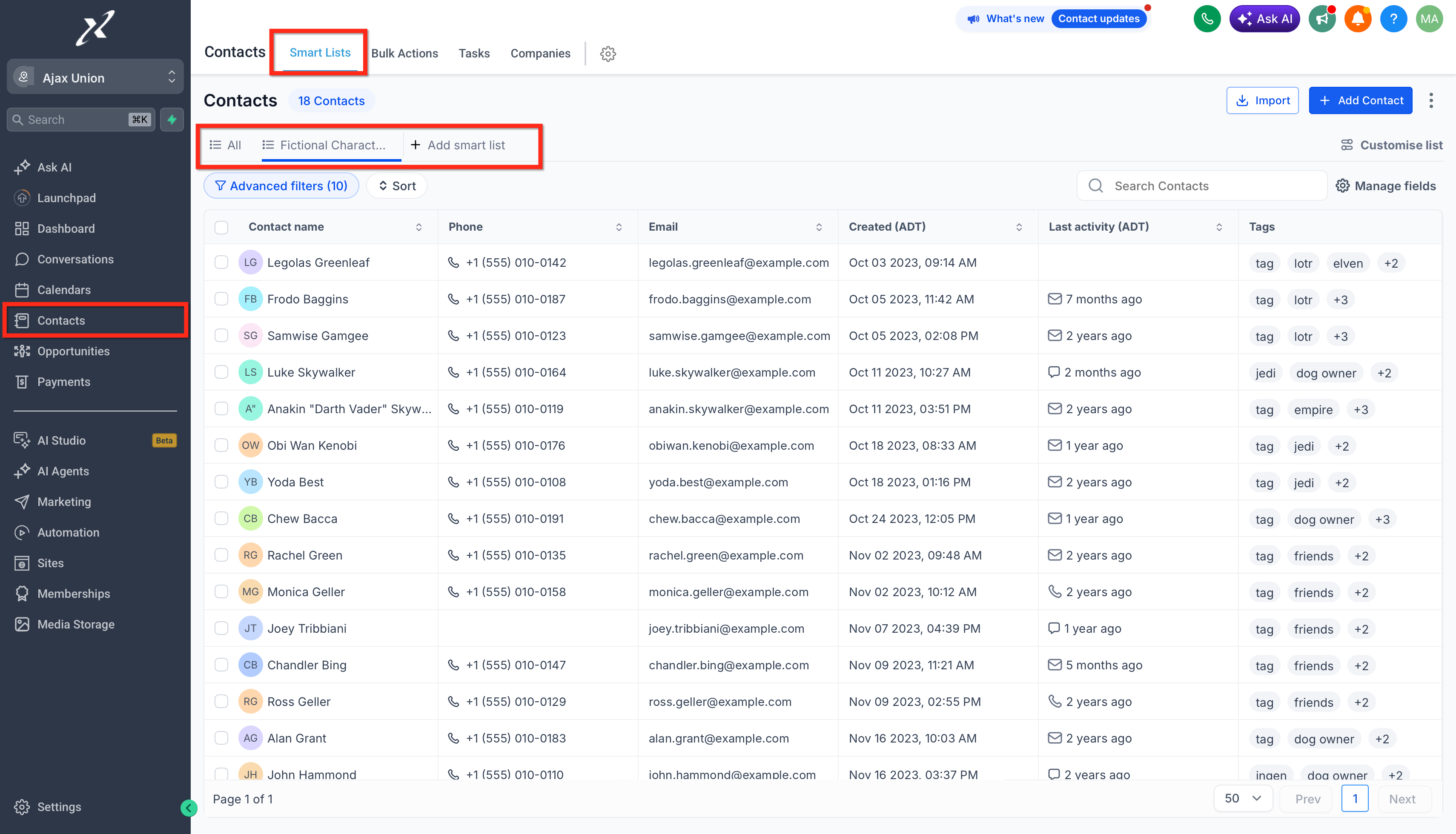
A Smart List is a saved group of contacts defined by filters, such as tags, custom fields, engagement activity or opportunity stage. Unlike a static list, it updates on its own. When a contact starts matching your filters, they join the list; when they stop matching, they drop off. You never have to add or remove people by hand.
You can also choose which columns each Smart List shows, so the details you care about are right in front of you.
Why Segment Your Contacts
Save time: your lists stay current without manual updates.
Target better: group contacts by behavior, lead status or engagement.
Stay organized: keep a large contact database easy to search and scan.
Power automation: use Smart Lists in workflows and campaigns.
Three Segments Worth Building First
Smart List | What it’s for | Filters to start with |
|---|---|---|
Past customers | Repeat business, referrals, review requests | A customer tag, or a closed-won opportunity stage |
Cold leads | Re-engagement campaigns | A lead tag combined with no recent engagement activity |
Open estimates | Estimate follow-up | The opportunity stage where estimates sit, such as “Estimate Sent” |
The filters that work best depend on how your account uses tags and pipeline stages. If tags are applied inconsistently, your lists will be too; see how tags trigger (or silently break) your automations.
Step 1: Create a Smart List
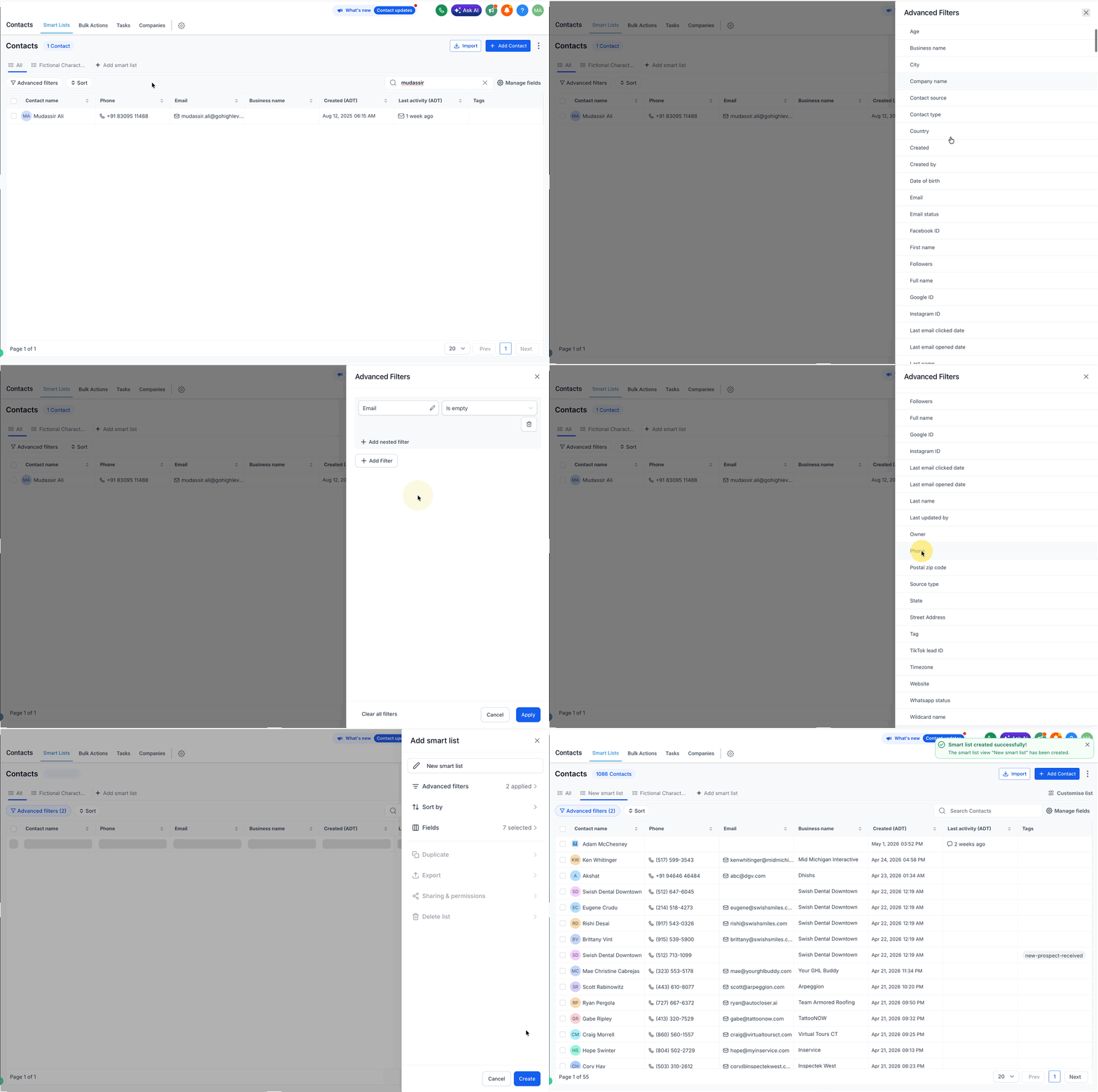
Log in at app.ajaxunion.com and go to Contacts → Smart Lists.
Click + Add smart list.
Choose one or more filters from the menu on the right side of the screen.
Enter the details for each filter, then click Apply.
To narrow the list further, click AND and add another filter.
Click Create to save your Smart List.
Step 2: Edit a Smart List
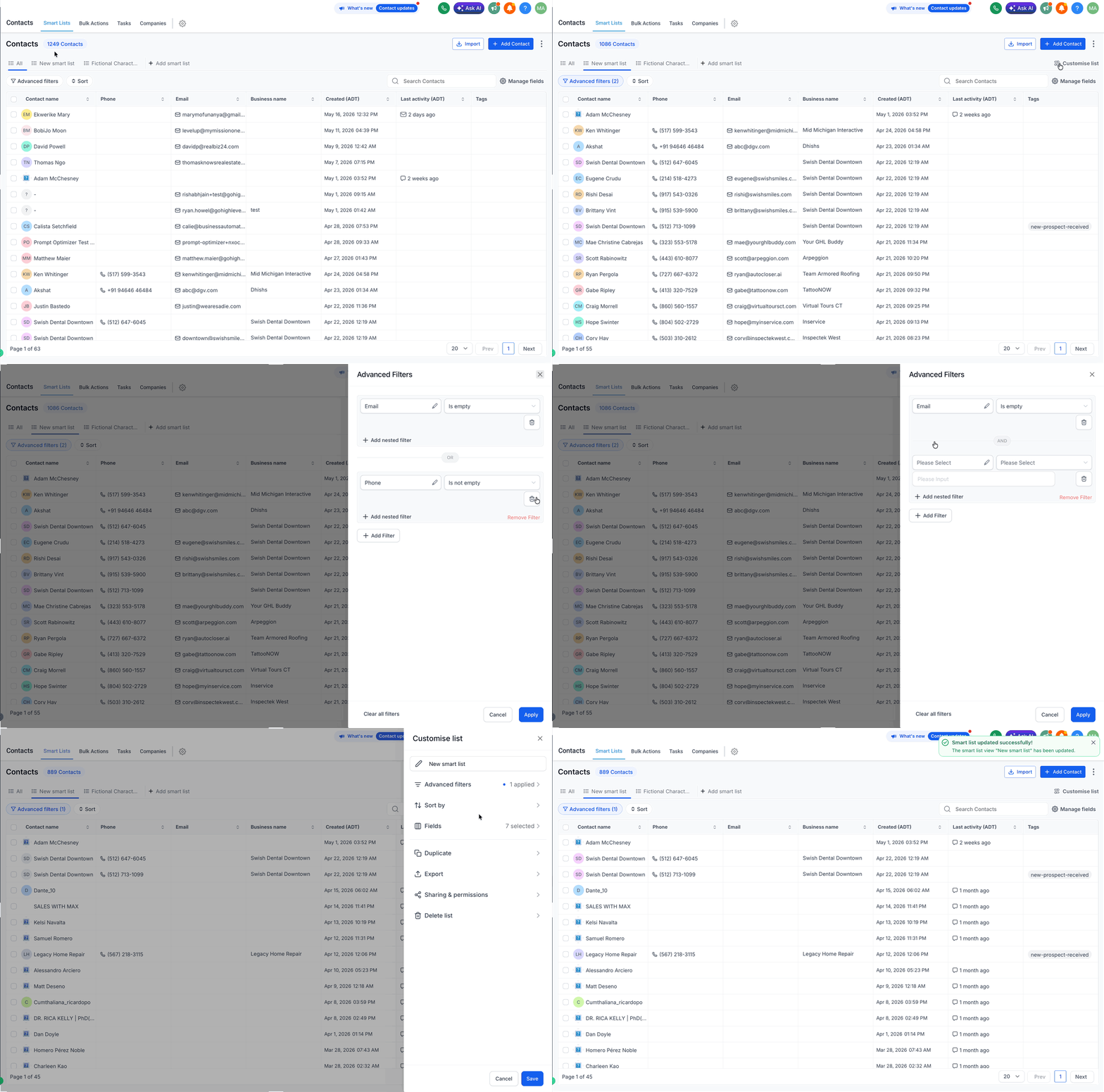
In Contacts, click the name of the Smart List at the top of the page to open it.
Open Customise List on the right side.
Click Advanced Filters.
Use the pencil icon to change a filter, or the dropdown arrow to remove one.
Click the save icon to keep your changes.
Step 3: Manage Your Smart Lists
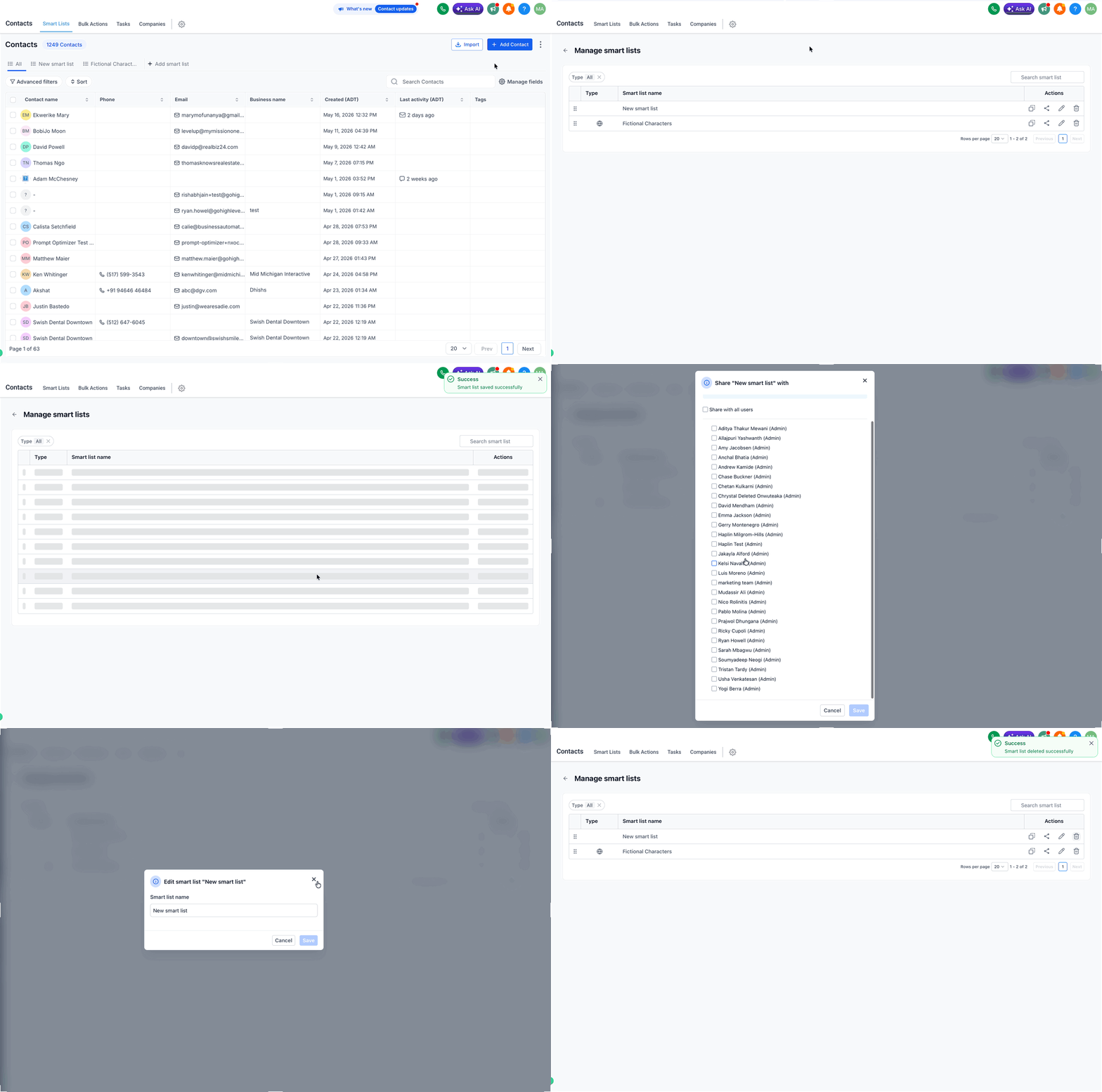
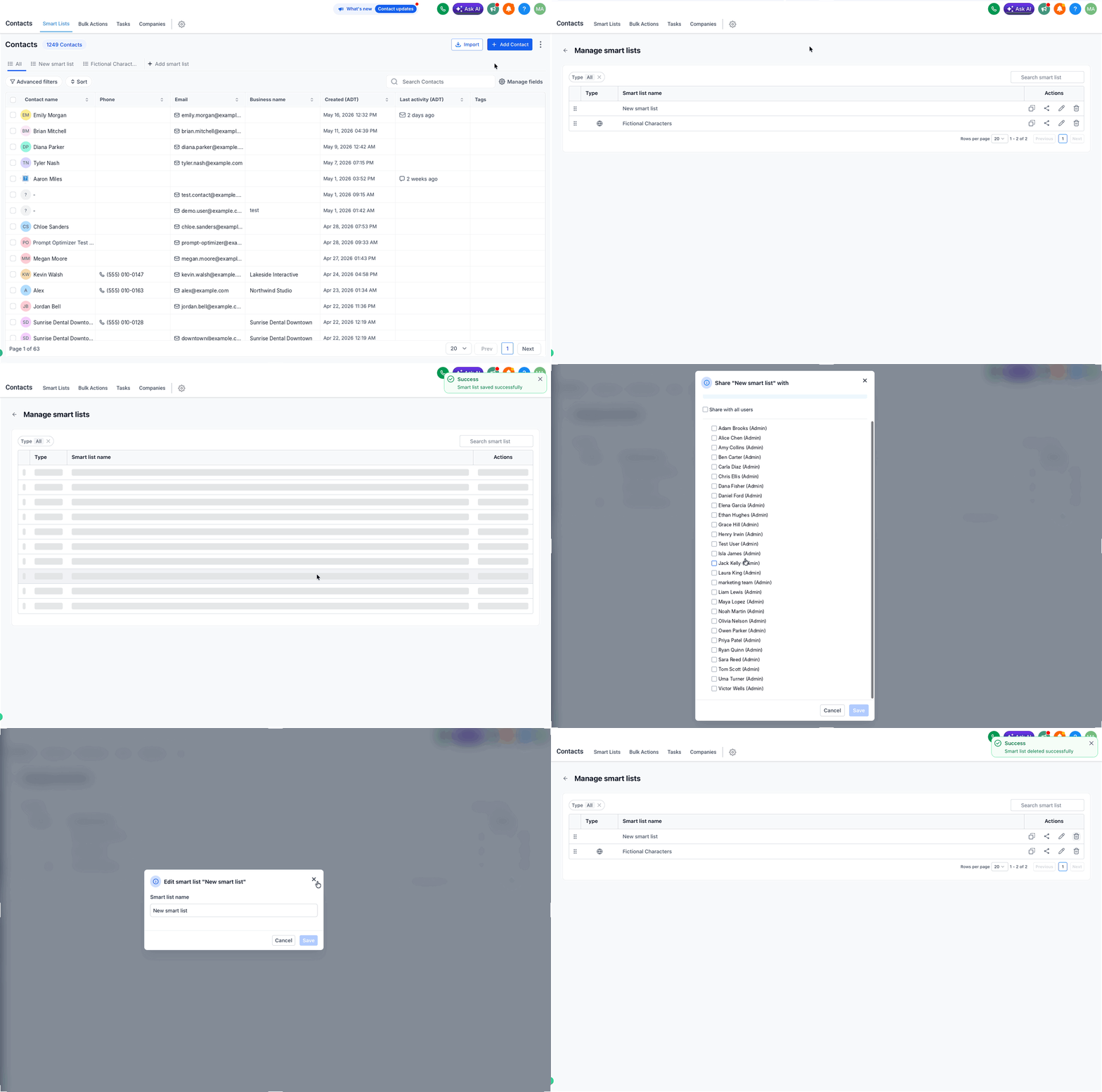
Go to Contacts → Smart Lists and click the three-dot menu next to Add Contact.
Select Manage Smart List.
In the Actions column, you can copy a list, share it with admins, rename it or delete it.
Copying is handy when you want a new segment that is close to an existing one. Duplicate it, then adjust the filters.
Step 4: Arrange the Columns
Open the Smart List you want to change.
Open the column or field manager near the top of the table.
Drag the columns into the order you want.
Save the Smart List again so the new layout sticks. If you don’t, it will keep the last saved layout.
Frequently Asked Questions
Can I add a contact to a Smart List by hand? No. Contacts join automatically when they match the filters. To include someone, update the detail the list filters on, such as adding the matching tag.
Do Smart Lists update before a scheduled email goes out? Yes. The recipient list is built when the email sends, not when you schedule it. Anyone who matches the filters by then is included, and anyone who no longer matches is left out.
Can everyone on my team see my Smart Lists? Smart Lists are created per user, but you can share them so other users can see them too.
Can I show more contacts per page? Yes. Use the selector in the bottom-right corner to show 20, 50 or 100 contacts per page.
Once your segments are ready, put them to work. Our guide to sending a year-end email campaign shows how to send a campaign to a Smart List.
Want to see MarTech in action? Book a live demo and our team will walk you through it.
