How to Build an Estimate Follow-Up Sequence in MarTech
Most estimates don't get turned down because of price. They go quiet. The customer gets busy, the email gets buried, and the job goes to whoever followed up first. The fix is a follow-up sequence that runs on its own every time you send an estimate.
With MarTech by Ajax Union, you can build that sequence once using workflows. It sends friendly reminders after an estimate goes out, and it stops the moment the customer accepts. This guide walks you through it step by step.
How the Sequence Works
You'll build two short workflows in app.ajaxunion.com:
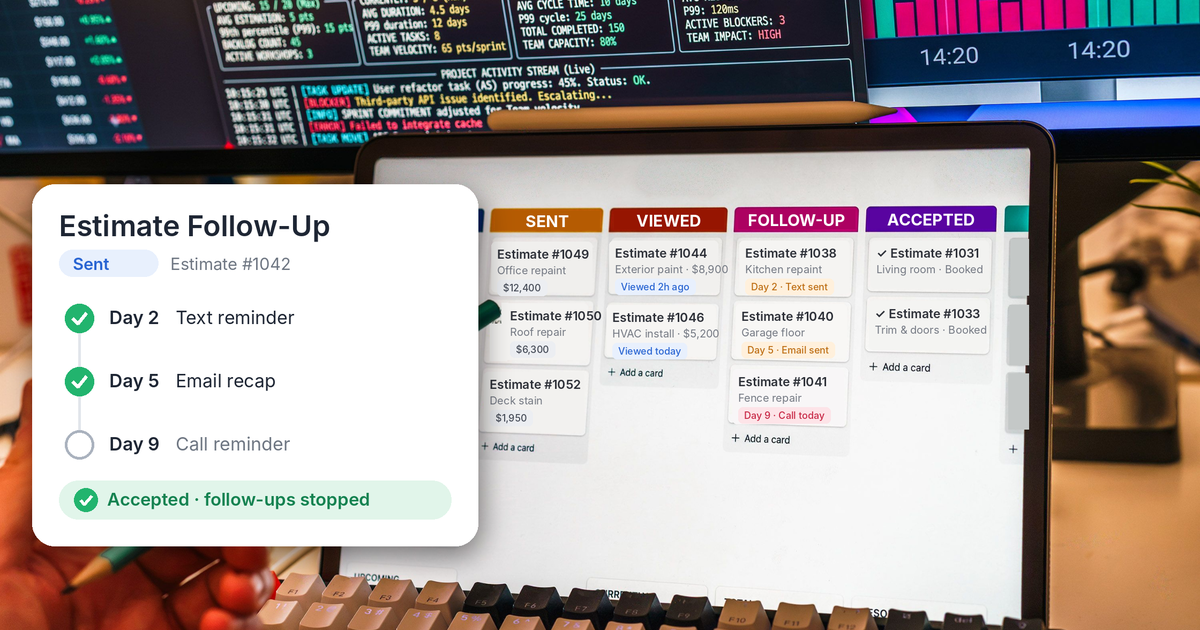
The follow-up workflow starts when an estimate is sent. It waits a few days, sends a text, waits again, sends an email, and finally reminds your team to call.
The stop workflow starts when an estimate is accepted or declined. It removes the customer from the follow-up workflow so they never get a reminder about a job they've already decided on.
Both use the Estimates trigger, which can start a workflow based on an estimate's status. The statuses you can use are Sent, Viewed, Accepted, Declined and Invoiced.
Before You Start
Make sure you're sending estimates from app.ajaxunion.com, so the system can see their status.
Draft your follow-up messages first. Keep them short and helpful, not pushy. A reminder that offers to answer questions works better than one that asks for a decision.
Step 1: Create the Follow-Up Workflow
Log in at app.ajaxunion.com.
Go to Automation and click + Create Workflow, then choose to start from scratch.
Name the workflow something clear, such as Estimate Follow-Up.
Click Add New Trigger and choose Estimates from the list.
Give the trigger a name, such as Estimate Sent.
Click + Add Filters, choose Estimate Status, set the operator to Is, and select Sent.
Click Save.
You can add more filters to the same trigger. For example, add Estimate Value, Greater Than, and an amount to run a more personal sequence only for larger jobs.
Step 2: Add the Follow-Up Steps
Now add the actions that run after the trigger. Here's a simple rhythm that works for most service businesses:
Wait 2 days. Add a Wait action set to 2 days.
Send a text. Add a Send SMS action. For example: "Hi {{contact.first_name}}, just checking that you received your estimate. Happy to answer any questions!"
Wait 3 days. Add another Wait action.
Send an email. Add a Send Email action that recaps what's included in the estimate and how to accept it.
Wait 4 days. Add one more Wait action.
Remind your team to call. Add an Internal Notification or task action so someone on your team picks up the phone. A personal call is often what closes the job.
The {{contact.first_name}} code is a merge field. It fills in each customer's name automatically. See our guide to merge fields for more options.
Step 3: Create the Stop Workflow
This workflow makes sure nobody gets a reminder after they've already said yes or no.
Go back to Automation and click + Create Workflow.
Name it Estimate Accepted or Declined – Stop Follow-Up.
Add the Estimates trigger with the filter Estimate Status Is Accepted.
Add a second Estimates trigger with the filter Estimate Status Is Declined.
Add a Remove from Workflow action and select your Estimate Follow-Up workflow.
If you like, add a thank-you text or email for accepted estimates, or a Create Opportunity action so the new job lands in your pipeline.
Click Save.
Step 4: Publish and Test
Switch both workflows from Draft to Publish and save them.
Send a test estimate to yourself or a team member.
Check that the contact enters the follow-up workflow.
Accept the test estimate and confirm the contact is removed from the follow-up workflow.
Tips for Follow-Ups That Win Jobs
Use the Viewed status. A separate workflow that starts when an estimate is Viewed lets you reach out while the customer is thinking about it. Wait a few hours, then send a short note offering to talk it through.
Match the tone to the job. A quick text suits a small repair. A larger project may deserve a personal email and a call.
Don't overdo it. Three or four touches over about ten days is plenty. After that, move the contact into a longer-term newsletter instead.
Never Let an Estimate Go Quiet Again
A follow-up sequence means every estimate gets the same attention, even on your busiest weeks. Build it once in app.ajaxunion.com, and let it do the chasing while you do the work.
Want to see MarTech in action? Book a live demo and our team will walk you through it.
