How to Send Facebook and Instagram Lead Ads to Your CRM
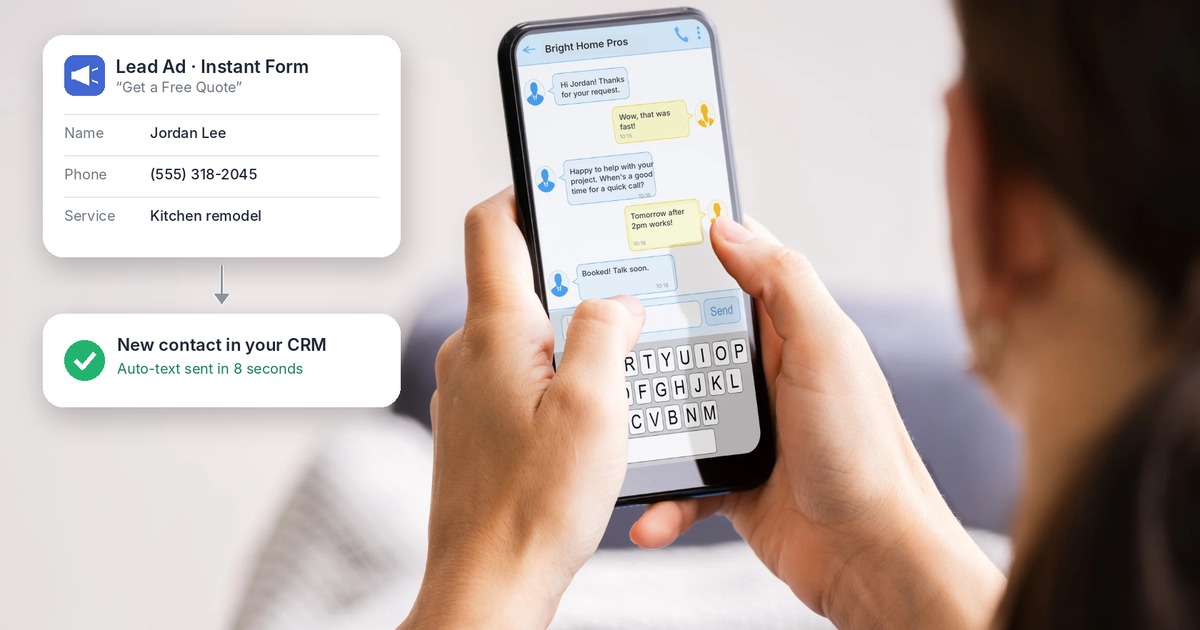
Lead ads on Facebook and Instagram make it easy for people to raise their hand. They tap the ad, the form fills in their details, and they're done in seconds. But if those leads sit in Facebook until someone downloads a spreadsheet, the moment is gone. The business that replies first usually wins.
With MarTech by Ajax Union, you can connect your lead ads directly to your CRM. Every new lead shows up as a contact in app.ajaxunion.com within moments, and a workflow can text, email and assign them right away. This guide shows you how to set it up.
What You Get When You Connect
No more manual exports: leads land in your contacts automatically.
Instant follow-up: a workflow can send a text and email the moment a form is submitted.
Clean data: each answer on your lead form maps to the right field on the contact.
Instagram included: if your Instagram business account is linked to your Facebook Page, Instagram lead ads come through the same connection.
Before You Start
You need Admin access to both the Facebook Page and the Business Manager it belongs to. Without it, the page won't show up when you connect.
Use Instant Forms. This integration works with lead ads built on Facebook's Instant Forms, not ads that send people to a website form.
Link Instagram to your Page if you want Instagram leads too.
Step 1: Connect Your Facebook Page
Log in at app.ajaxunion.com.
Click Settings in the bottom-left corner.
In the Settings menu, scroll down and click Integrations.
Find the Facebook–Instagram card and click Connect.
In the pop-up, log in to Facebook with the right account and approve all the permissions it asks for, especially access to leads and page data.
Select the Facebook Page you want to connect.
Choose how to sync leads: All Leads brings in past leads plus every new one, while New Leads Only starts from today.
Click Connect and Continue. A green banner confirms the integration was successful.
Step 2: Map Your Form Fields
Next, match each question on your Facebook lead form to a field in app.ajaxunion.com. Name, email and phone usually map automatically. For custom questions, such as "What service do you need?", map them to a custom field so the answer is saved on the contact and you can use it in your follow-up.
If you add a new lead form in Facebook later, come back and map it too.
Step 3: Build the Follow-Up Workflow
Go to Automation and click + Create Workflow, then start from scratch.
Add the trigger Facebook Lead Form Submitted.
Name the trigger after the campaign, for example Spring Promo Lead Form.
Add filters for Page Is and Form Is, and select the page and form for this campaign.
Add your follow-up actions. A simple, effective set:
Send SMS right away: "Hi {{contact.first_name}}, thanks for reaching out! When's a good time for a quick call?"
Send Email with more detail and a link to book a time.
Create Opportunity in your pipeline so the lead is tracked from day one.
Internal Notification so someone on your team calls within minutes.
Save the workflow and switch it to Publish.
Without filters, the workflow runs for every lead form on every connected page. Each trigger watches one form, so for several campaigns you can add a copy of the trigger with a different form, or build a separate workflow for each.
Step 4: Test It
Use Meta's free Lead Ads Testing Tool at developers.facebook.com/tools/lead-ads-testing. Choose your Page and form, then create a test lead. Within a minute or two, check that:
The test lead appears as a contact in app.ajaxunion.com.
The answers landed in the right fields.
The workflow started and sent the text and email.
Delete the test lead from Meta's tool when you're done so it doesn't skew your ad reporting.
Troubleshooting
My page isn't showing up. Check that you're an Admin on both the Page and its Business Manager, then reconnect.
Leads stopped coming in. Facebook connections can expire after a password change or a permissions update. If you see a reconnect prompt in app.ajaxunion.com, follow it and approve the permissions again.
The workflow didn't fire. Make sure the workflow is published, and that the Page and Form filters match the form your ad uses.
Turn Every Ad Click Into a Conversation
Lead ads bring the leads. A connected CRM makes sure every one of them gets a fast, personal reply. Set it up once in app.ajaxunion.com, and your ads and follow-up work as one system.
Want to see MarTech in action? Book a live demo and our team will walk you through it.
