
How to Make Your AI Agent Smarter with Prompts, Tools & Knowledge in Ajax Union MarTech
A basic AI agent can hold a conversation. A smart one knows when to answer from memory, when to look something up, when to hand off, and what details to capture along the way — all without you scripting every path in advance. The difference between the two isn't a bigger model or a longer prompt. It's how you configure the AI Agent Node, the component inside Agent Studio that does the actual thinking.
This guide walks through the five elements that shape how your agent behaves — Prompt, Model, Mode, Tools, and Variables — and how to configure the node so your agent responds accurately, acts when it needs to, and stays reliable in real conversations. It's the layer beneath "building your first agent": once you understand these five levers, you can tune any agent to behave exactly the way your business needs it to.
What the AI Agent Node Actually Does
Inside Ajax Union MarTech, you build agents at app.ajaxunion.com under AI Agents → Agent Studio by dropping nodes onto a canvas and connecting them. Execution starts with a Start Trigger, and the AI Agent Node runs the moment it receives input — from that trigger or from another node upstream.
What makes this node different from rigid, rule-based automation is that it doesn't follow fixed logic. It reads the incoming message, interprets intent, and decides the next best step — whether that's replying, pulling information, capturing a detail, or handing the conversation off. That adaptability is exactly what you want when inputs are unpredictable and the right response depends on context.
Five elements control that behavior. Get these right and the agent is sharp; get them vague and it drifts.
The Prompt: Your Agent's Job Description
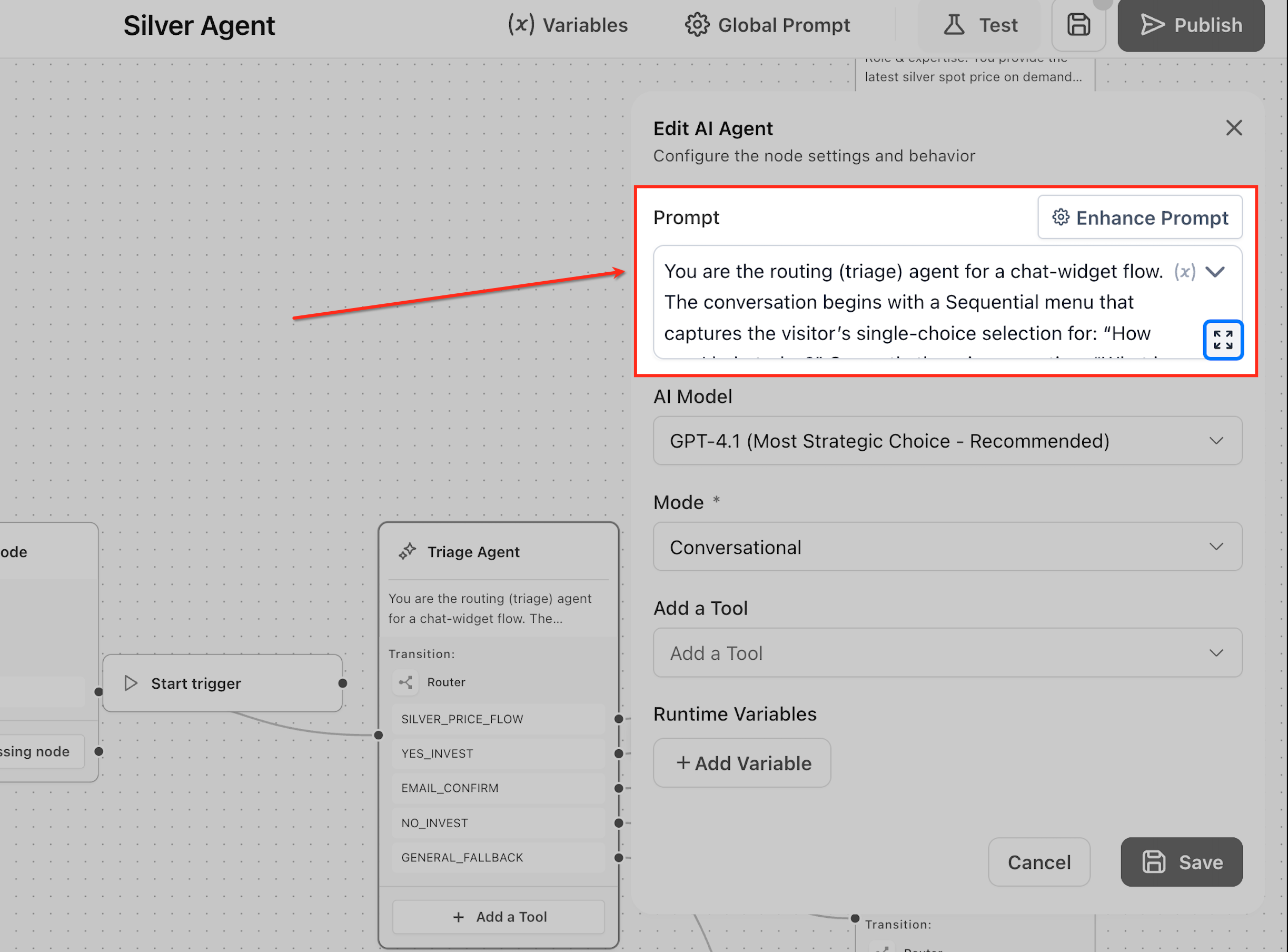
The Prompt is where you define who the agent is and how it should act. You specify its role, its tone, the tasks it's responsible for, and — critically — when it should reach for a tool. The agent leans on these instructions every time it interprets a message.
A strong prompt is specific. "Be helpful" produces a wishy-washy agent. "You are a support specialist. Answer questions about pricing and plans. When a visitor asks about specific plan details, pull the answer from your knowledge base rather than guessing" produces one that behaves consistently and knows its limits.
You can also drop dynamic variables directly into the prompt using the {} icon in the prompt field. Insert something like {{contact.name}} into an instruction such as "Greet the visitor by name and help them with their request," and the agent fills in the real name at runtime — so a returning contact named Rahul gets "Hi Rahul, how can I help you today?" instead of a generic greeting. You can pull from several sources this way: account and business details, contact information, real-time date and time, values passed in from earlier nodes, and static custom values you define once and reuse.
Use variables deliberately. Stuffing the prompt with every available field muddies the instructions and makes outputs less predictable — add only what the response genuinely needs.
If you're unsure whether your prompt is tight enough, the Enhance Prompt option generates a cleaner, more structured version for you to review. You stay in control: accept the rewrite or keep your original.
The Model: How Much Reasoning Power to Spend
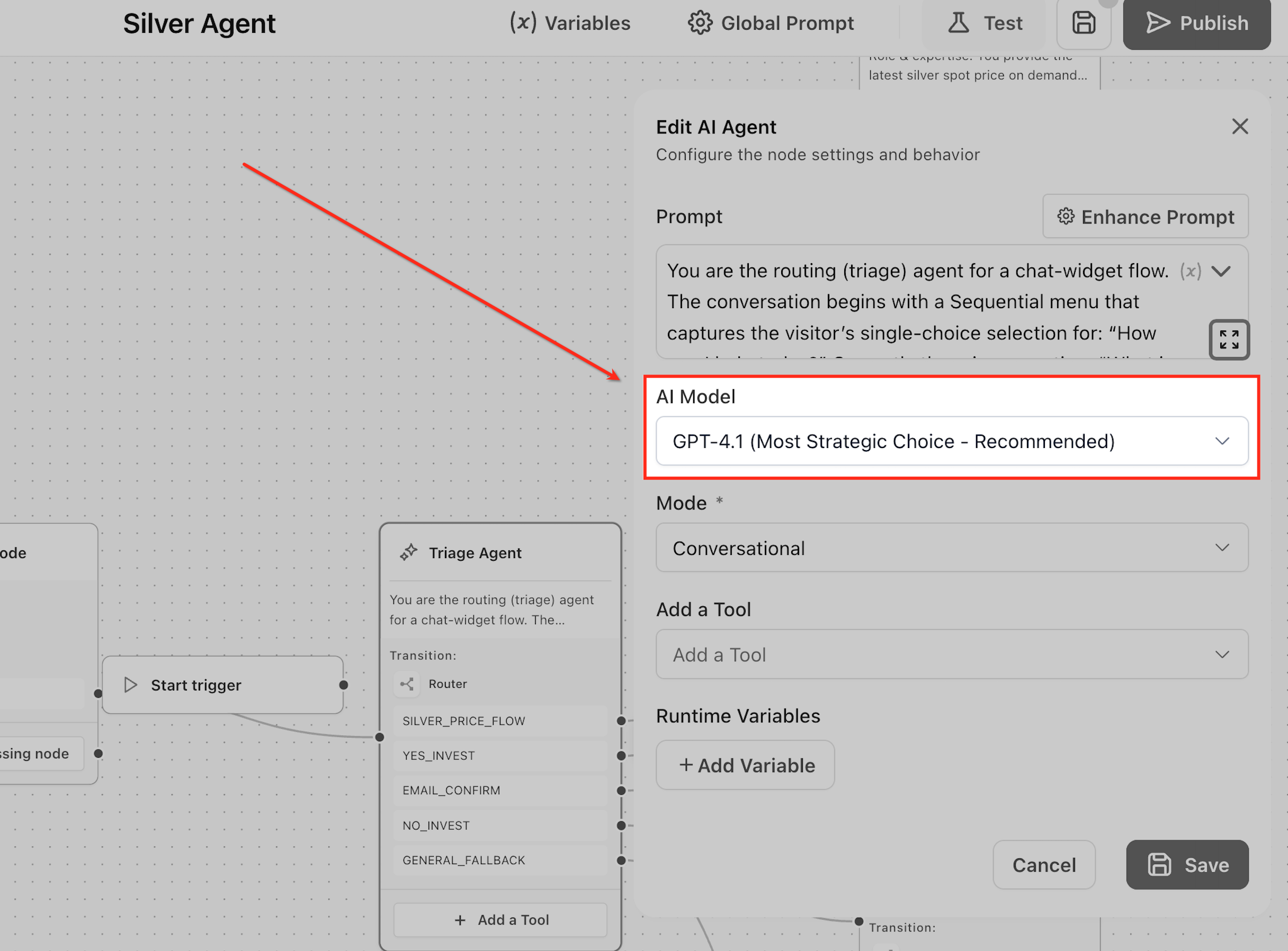
The Model setting determines how well the agent understands input and how sophisticated its responses are. You're making a trade-off between reasoning depth and speed.
Higher-capability models handle nuance and ambiguity well — they can read "I'm just exploring options for my business right now" and correctly flag it as a warm lead worth qualifying. Lighter, faster models are better suited to simple, high-volume tasks where a quick, straightforward reply is all you need and latency matters more than subtlety. Match the model to the job: reserve the heavy reasoning for agents that qualify leads or navigate complex conversations, and use the lightweight options for fast, repetitive interactions.
The Mode: Talking vs. Working
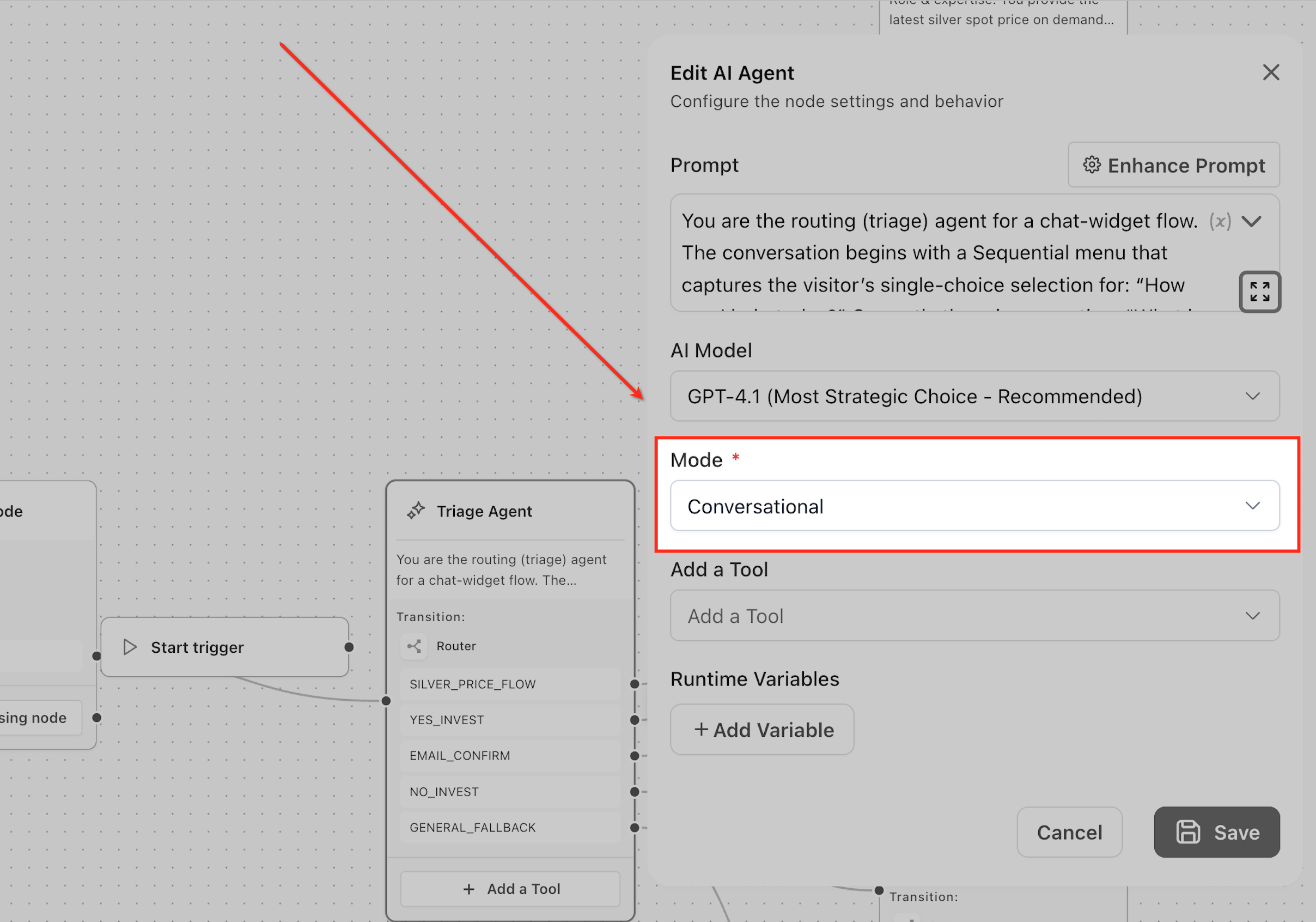
Mode decides whether your agent speaks to people or works silently in the background.
Conversational Mode is for agents that interact directly — answering questions, guiding a visitor, handling a live chat.
Task Based Mode is for agents that execute without producing a user-facing reply — for example, reading a conversation, extracting a contact's email, and updating your CRM quietly.
The same underlying node can be pointed at either job. A conversational agent fields a pricing question and responds; a task-based agent pulls structured details out of a message and passes them along without ever "speaking." Choose based on whether the agent's output belongs in front of a person or behind the scenes.
Tools: Letting the Agent Do More Than Talk
Tools are what turn a chatbot into something that actually gets work done. Based on your prompt and the situation, the agent decides on its own when a tool is needed and which one to use. Attach only the tools a given agent actually requires — extra tools invite confusion and off-target behavior.
The tools available to the AI Agent Node include:
Search Knowledge Base — lets the agent retrieve answers from the knowledge base you've built, so responses are grounded in your real information rather than the model's assumptions. This is the tool that keeps a support agent accurate on pricing, product details, and FAQs. (This guide covers how the agent uses the knowledge base during a conversation. For how to build and structure the knowledge base itself, see: [INTERNAL LINK — "Knowledge Base Tables" post — Ajax to insert slug; note: currently on old
-unlimited-digital-marketingslug] and [INTERNAL LINK — "Train Your AI Agent with Documents & Rich-Text" post — Ajax to insert slug; same old-slug note].)Search the Web — pulls real-time information from the internet for questions your internal knowledge base can't answer, like current events or fast-moving external data.
Connect to External Systems — links the agent to outside platforms, databases, and third-party services, extending what it can reach beyond your account.
Actions — turns the agent's decisions into real outcomes: updating a contact record, sending a notification, or kicking off an automation.
Router — directs the conversation down different paths based on intent, so a single agent can branch into sales, support, or a fallback flow. (Routing is a topic in its own right — for the full breakdown of how your agent decides where to send each conversation, see: [INTERNAL LINK — "How Your AI Agent Decides Where to Send Each Conversation" (7/6 post) — Ajax to insert slug].)
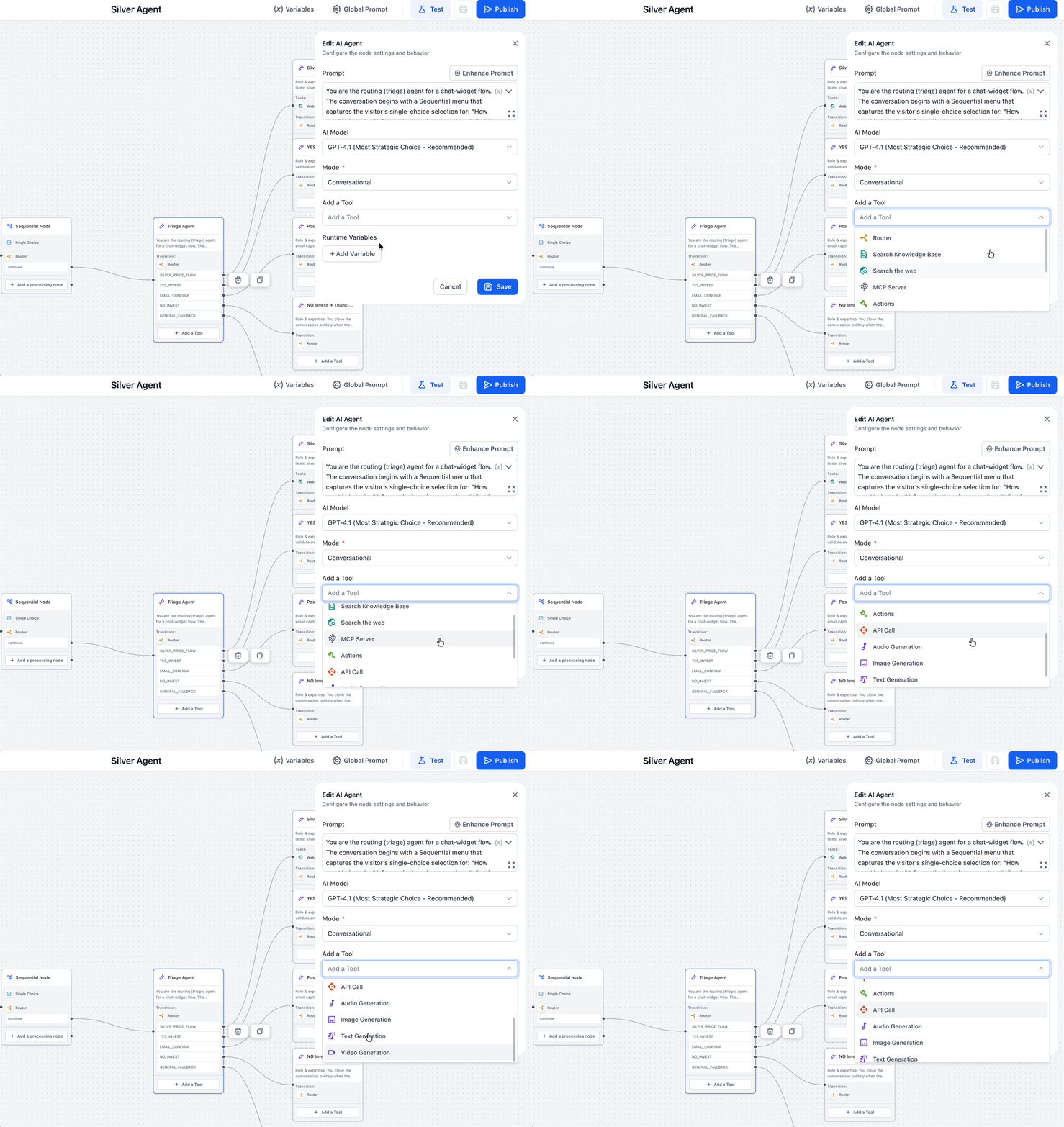
The point of tools is that the agent combines judgment with execution in real time. Ask "Do you support international payments?" and an agent with the Knowledge Base tool retrieves the verified answer before replying — rather than improvising one.
Variables: Giving the Agent a Memory
Variables are how the agent handles data — both the context it's given and the information it gathers along the way.
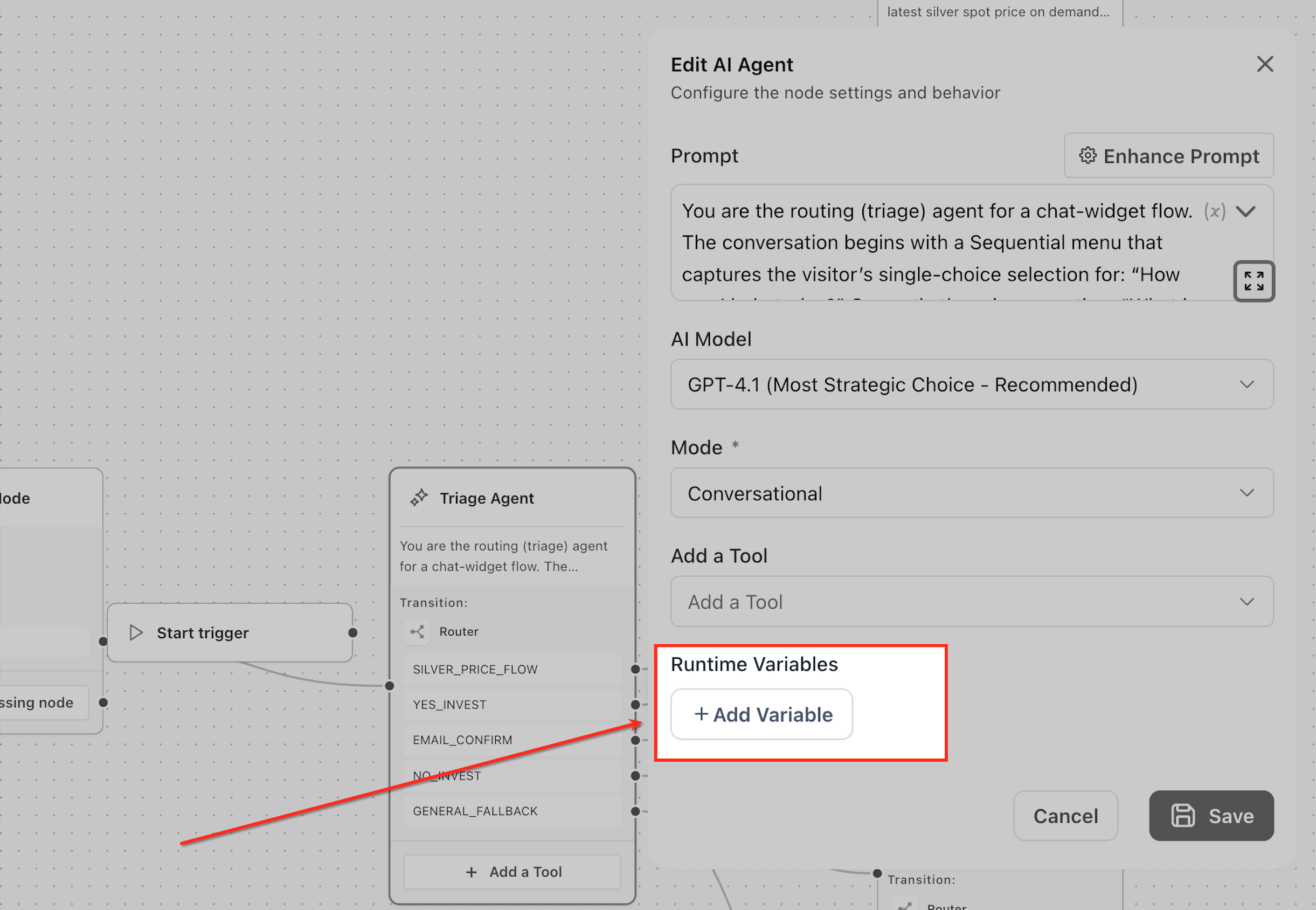
Input variables carry context in from earlier steps, so the agent knows what happened before it took over. Runtime variables are captured during the conversation: when a visitor says "Hi, I'm Rahul, I need a demo," the agent can pull out Name = Rahul and Requirement = Demo and hold onto them for later — a CRM update, a follow-up, or the next node in the flow.
For each runtime variable you define three things: a Name (the identifier, like user_email or requirement), a Type (text, number, true/false, or structured data), and a Description — a plain-language instruction telling the agent exactly what to look for in the conversation. That description does the heavy lifting: it's how the agent knows what to extract and when.
Putting It Together: Configuring the Node
Once you understand the five elements, configuration is straightforward. Inside your agent in Agent Studio:
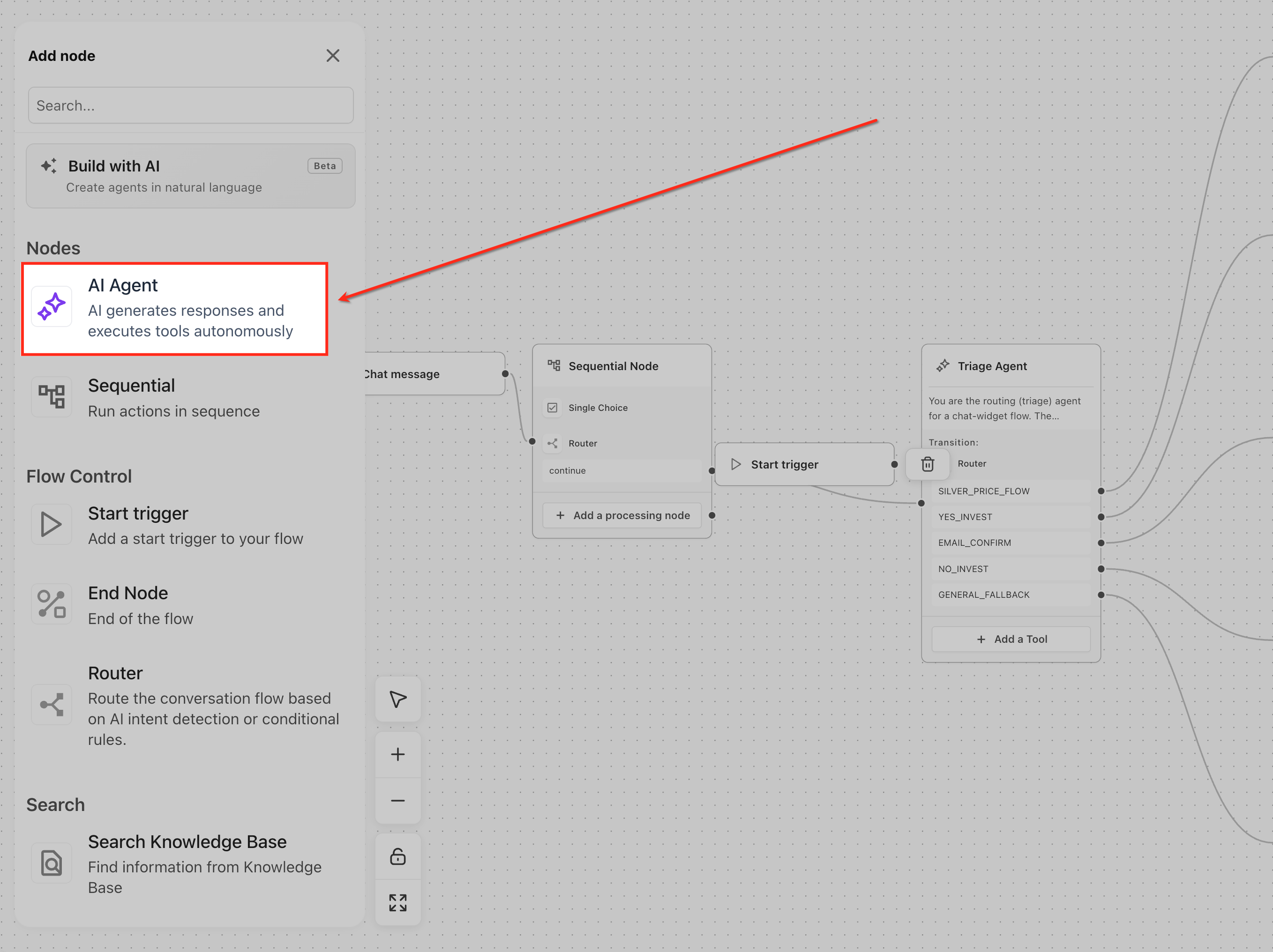
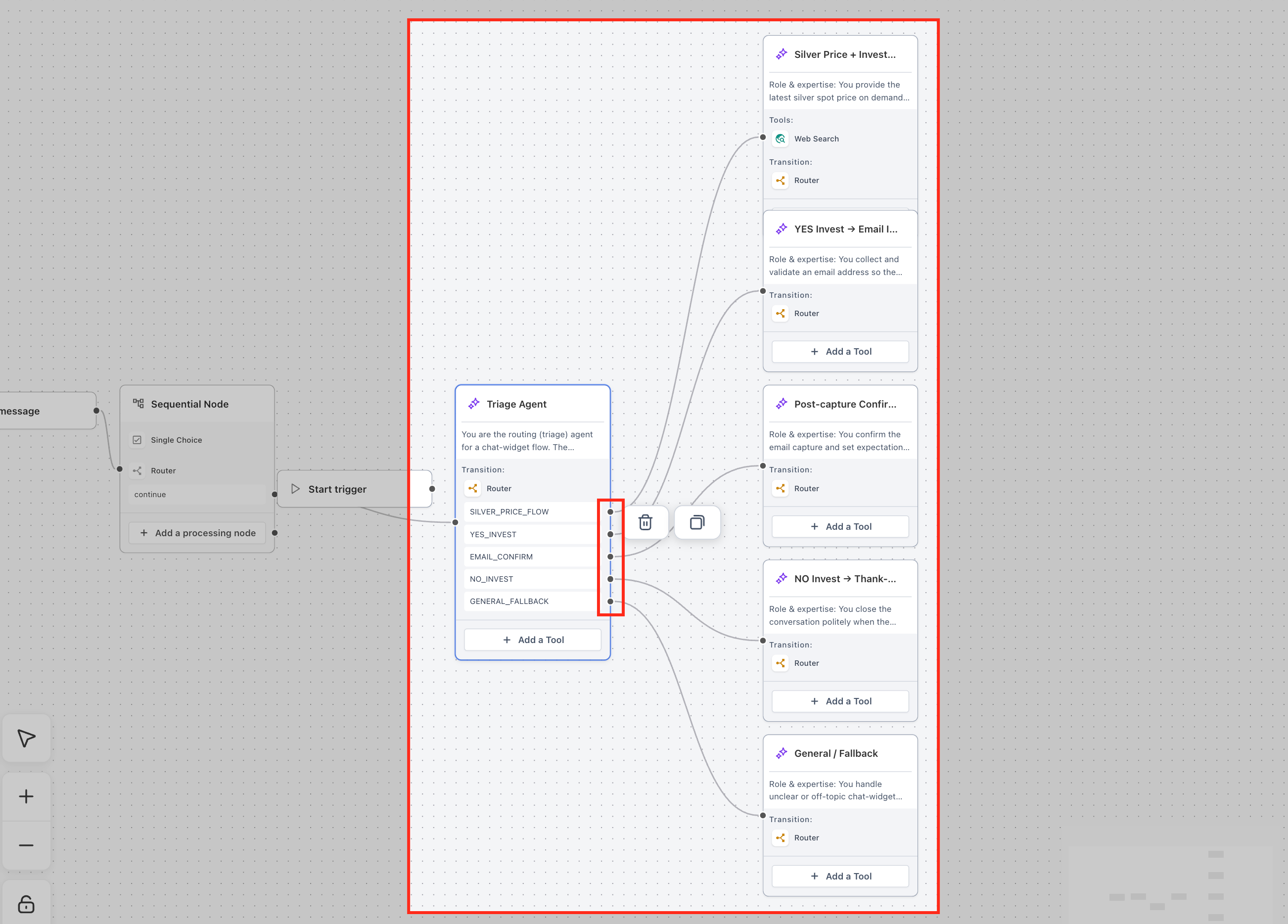
Add the AI Agent Node. Open the Nodes panel, drop the AI Agent Node onto the canvas, and connect it to a Start Trigger or a preceding node.
Write the prompt. Define the agent's role, responsibilities, tone, and its rules for when to use tools. Insert any dynamic variables you need with the
{}icon.Select the model. Higher-capability for complex reasoning, lighter for fast and simple.
Choose the mode. Conversational for interaction, Task Based for silent execution.
Attach the tools the agent actually needs — and nothing more.
Define runtime variables for the data you want captured during the conversation.
Connect the node forward so its output — a reply, an action, or extracted data — passes to the next step.
Set correctly, these elements produce an agent that answers accurately, acts when appropriate, and keeps a clean, predictable flow.
Frequently Asked Questions
How does the agent decide when to answer versus when to use a tool?
It weighs three things: your prompt instructions, the tools attached, and the visitor's message. The prompt is the primary guide — an instruction like "use the knowledge base for pricing questions" tells the agent when to reach for a tool. If it has enough to answer directly, it will; if the prompt or the situation calls for verified information, it uses the tool first.
Should one agent handle multiple jobs?
No. The AI Agent Node performs best focused on a single role. One node trying to manage both sales and support tends to produce inconsistent results. Split distinct responsibilities into dedicated agents and let them hand off to each other — you'll get cleaner behavior and easier troubleshooting.
How do I keep the agent from doing something I don't want?
Control comes from three places: the prompt sets behavioral boundaries, the tools you attach determine what actions are even possible, and variables define what data gets captured. Give an agent only a Knowledge Base tool and no Actions tool, for instance, and it can answer questions but can't touch your CRM — the guardrail is built into the configuration.
How do I know if my agent is actually working well?
Watch four things: response quality, whether it uses tools at the right moments, whether it extracts data accurately, and whether it stays consistent across conversations. Run a few realistic scenarios through it — a lead-qualification agent, for example, should ask the right questions and capture the correct details every time, not just once.
Build Smarter Agents in Ajax Union MarTech
Prompt, model, mode, tools, variables — five levers, and every well-behaved agent is just a thoughtful combination of them. Start simple: a clear prompt, the right model, and only the tools the job requires. Then layer in variables and refine as you watch the agent work.
Log in at app.ajaxunion.com, open AI Agents → Agent Studio, and open up your agent's AI Agent Node to start tuning. For more tutorials and platform guides, visit https://martechsupport.com/home
