How to Launch a Website From a Template in MarTech
Getting a new website online takes more than picking a nice design. In MarTech by Ajax Union, launching a site comes down to five tasks done in the right order: create, customize, connect, assign, and publish. Follow that order and you avoid the most common launch headaches, like broken links, missing updates, and domain errors.
This guide walks you through each step, then gives you a final checklist to run before you share your site with the world.
What does "launching" a website mean?
Launching moves your website from a private draft to a live site that visitors can reach at your own web address.
Two buttons matter here:
Save stores your latest changes but does not change what visitors see.
Publish takes your saved version and makes it live.
Why follow a launch process?
A clear path: you finish each task in the right order instead of jumping back and forth.
Safer updates: you review changes before anyone else sees them.
A branded address: your site runs on your own domain or subdomain.
Fewer surprises: you check your domain, pages, forms, and mobile layout before visitors do.
Before you begin
Gathering everything up front keeps setup moving. Make sure you have:
Access to the MarTech account that holds the website. You can log in at app.ajaxunion.com.
Your logo, images, written content, and the pages you need.
A domain, bought through MarTech or another domain provider.
Login access to your domain provider's DNS settings, in case you need to connect manually.
A decision on whether to use a root domain (such as example.com) or a subdomain (such as www.example.com).
A chosen homepage and the URL paths for your other pages.
Good to know: DNS changes can take up to 24 hours to update. Once your domain is connected and its DNS records are verified, MarTech sets up SSL (the padlock in the browser) automatically.
Step 1: Create the website
This step sets up the design and page structure you will build on.
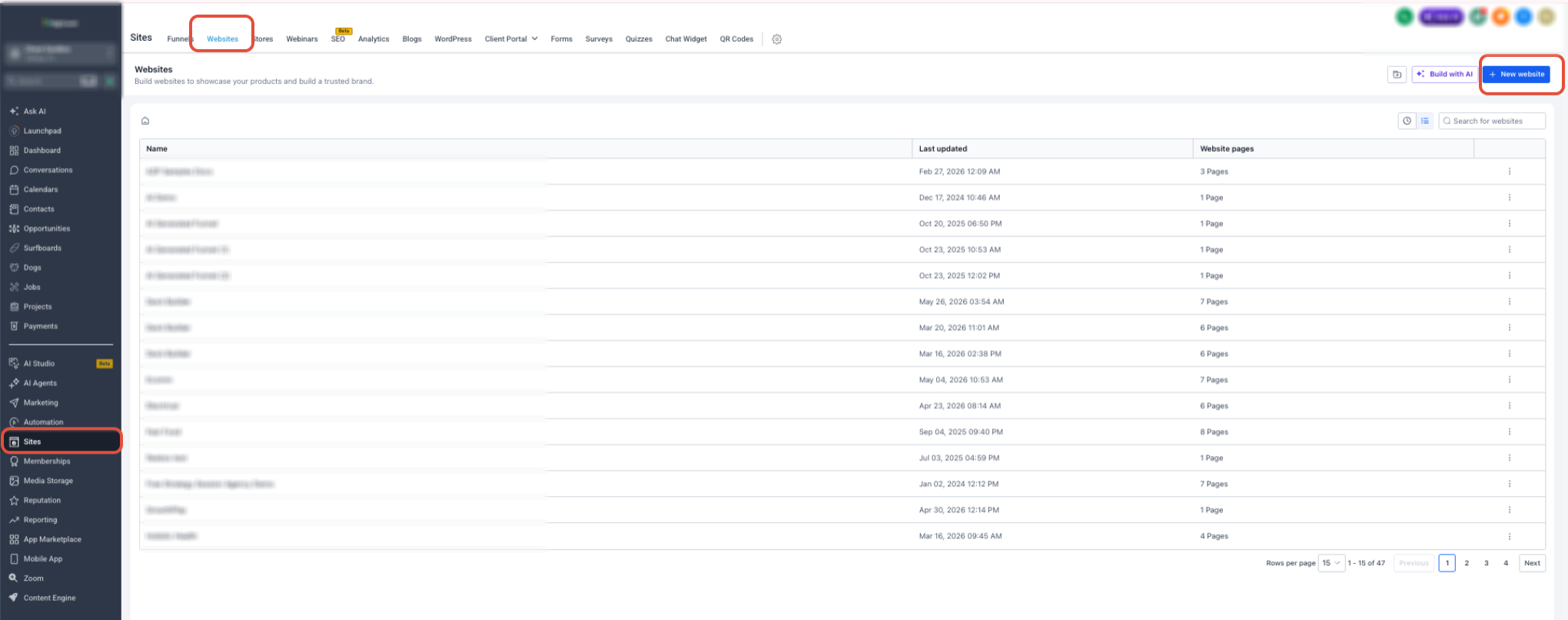
Go to Sites → Websites.
Click + New Website.
Choose how to start:
From Blank to build from scratch.
From Templates to start with a ready-made design.
Enter a name for the website.
Click Create.
If you chose a template, preview the options and select the design you like.
Step 2: Customize and save the website
Polishing your pages before connecting a domain keeps unfinished content away from visitors.
Open each page in the Website Builder.
Update the text, images, colors, navigation, buttons, forms, and other elements.
Check that every navigation link goes to the right page.
Review both the desktop and mobile layouts.
Click Preview to test the page the way a visitor would.
Add a page title and meta description in the page's SEO settings.
Click Save.
Remember: saving does not update your live website. Your changes only go live when you click Publish in Step 5.
Step 3: Connect your domain
Connecting your domain lets MarTech confirm that your web address points to the right place.
Exit the Website Builder.
Open the website's Settings tab.
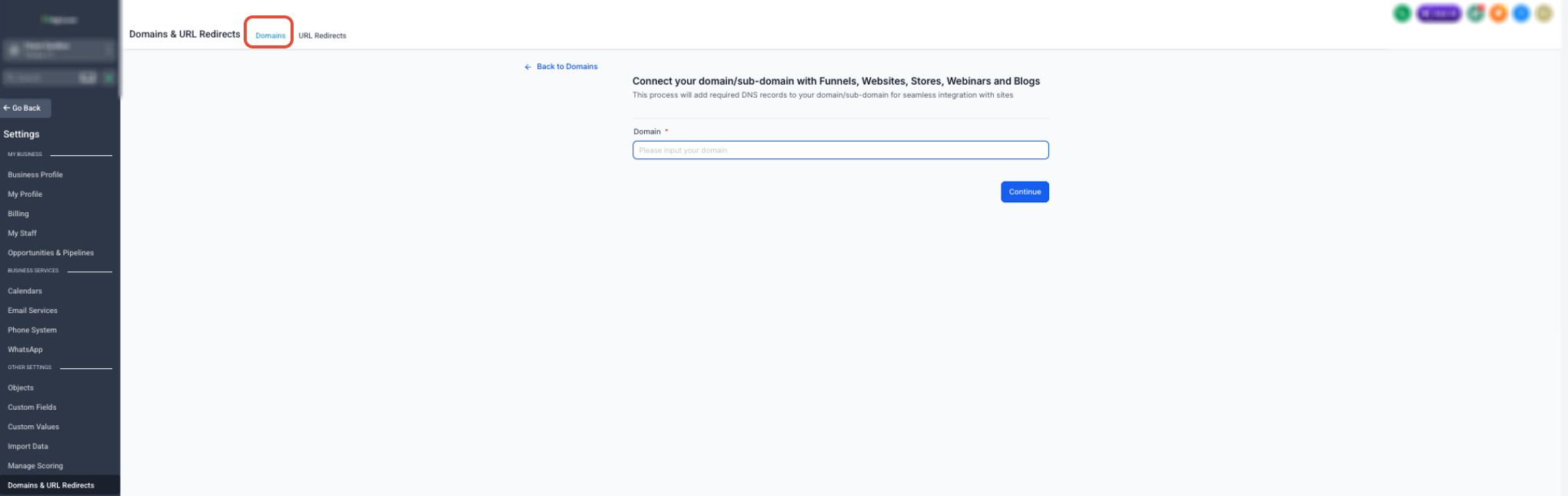
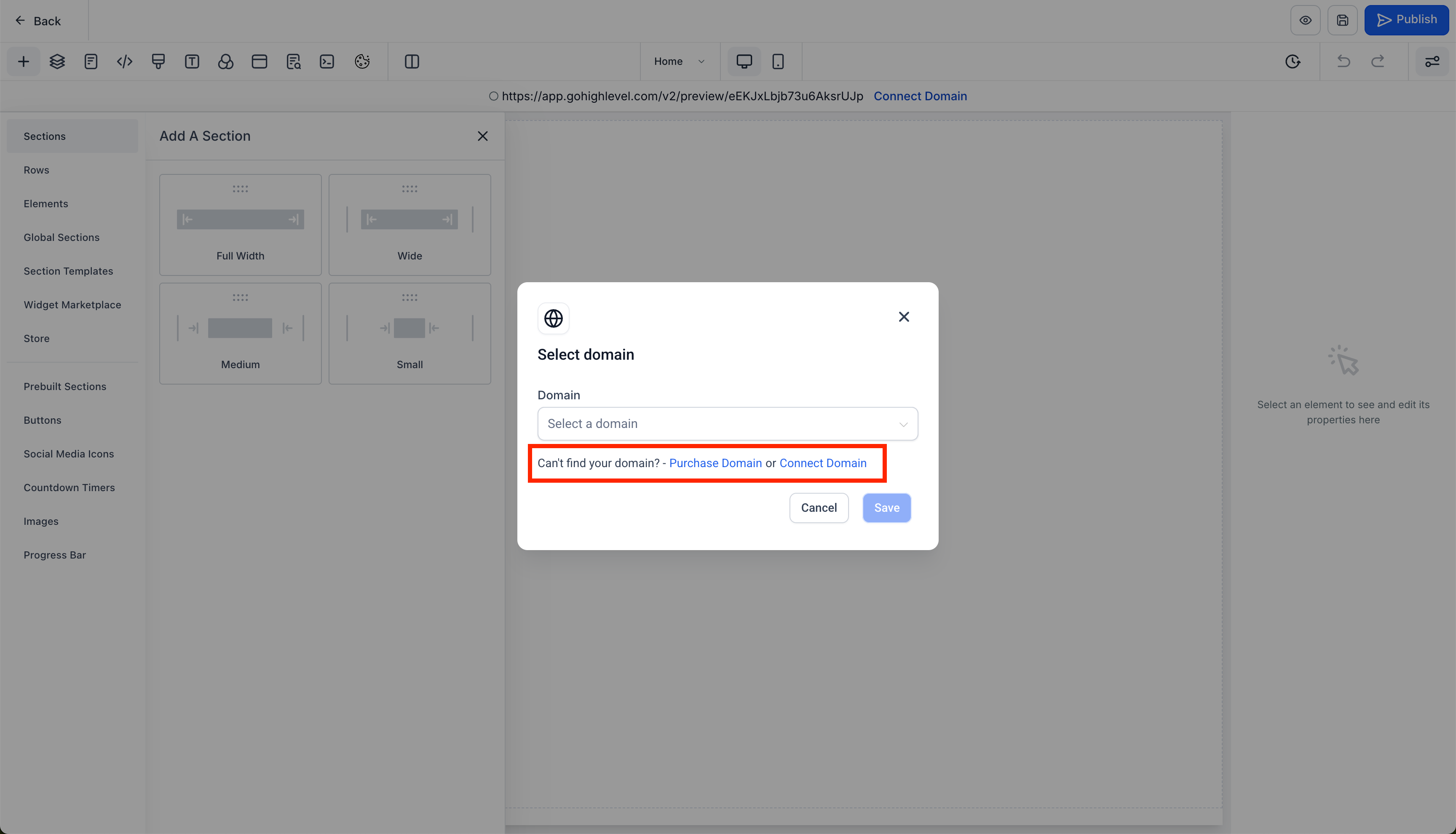
Under Domain, click Connect Domain.
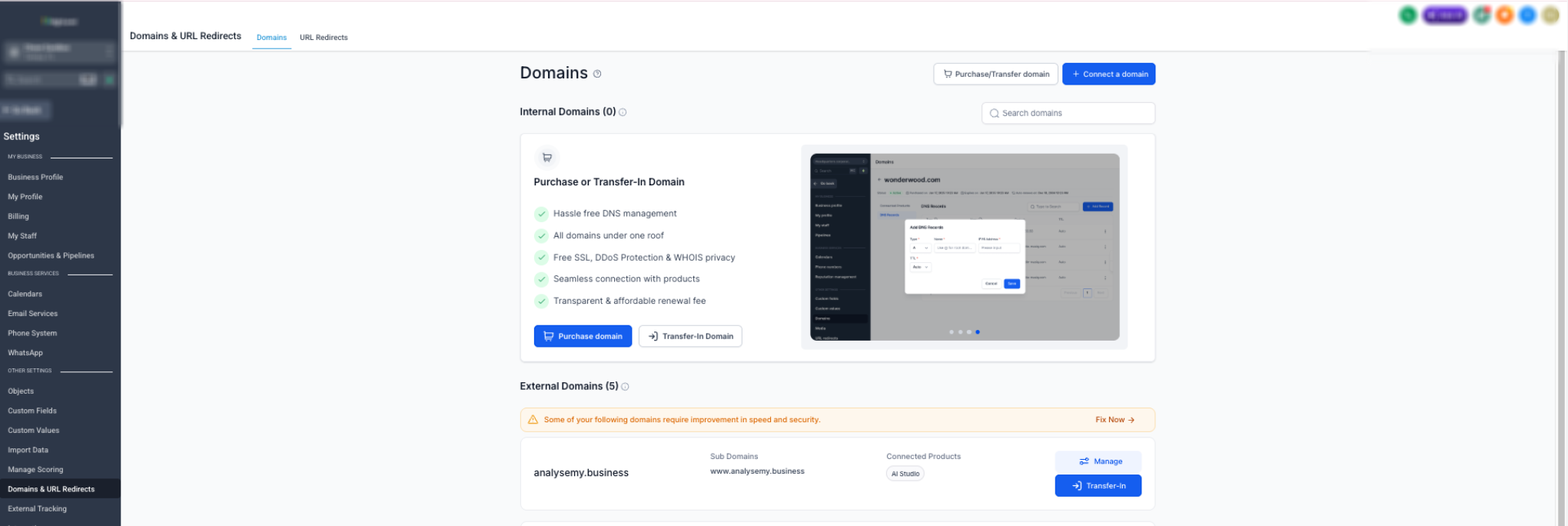
If the Domains page opens, click + Connect a domain.
Click Connect next to Funnel/Website/Store/Blog/Webinar.
Enter the root domain or subdomain your visitors will use.
Click Continue.
Finish the connection using the option MarTech offers:
Automatic connection: sign in to your supported domain provider and allow MarTech to add the required records for you.
Manual connection: copy the DNS records MarTech shows you and add them at your domain provider.
Wait until the domain shows as connected or verified.
Using Cloudflare? Set the website's A or CNAME record to DNS only, not Proxied.
Domain still pending? Give it up to 24 hours. After that, compare each record against the values MarTech provided and remove any conflicting records.
Step 4: Assign the domain to your website
Assigning the domain links your verified address to this specific website.
Go back to Sites → Websites.
Open your website.
Select the Settings tab.
Open the Domain dropdown.
Select your connected domain.
Review the Path:
Keep a path such as /services if the site should open at example.com/services.
Set your homepage as the domain's default page if the site should open directly at example.com.
Scroll to the bottom and click Save.
[SCREENSHOT NEEDED: Domain dropdown and Path field in website Settings]
Step 5: Publish the website
Publishing makes your latest saved version live on your domain.
Go back to the Website Builder.
Preview the page one last time.
Click Save.
Click Publish.
Publish every page that should be available on the live site.
Final launch checklist
Open your site in a private or incognito browser window. This shows exactly what visitors see, without saved data or your logged-in MarTech session getting in the way.
Your domain shows as Connected, Verified, or Active in MarTech.
The public URL opens in a private or incognito window.
The site loads over https:// with no security warning.
The correct homepage appears, not a 404 page.
The root and www versions of your domain behave the way you intended.
Navigation links and buttons go to the correct pages.
Forms, calendars, popups, and checkout elements work, if you use them.
A test form submission creates the expected record or notification.
Desktop and mobile layouts look right.
Your latest published content appears on the live site.
No placeholder text, template images, test prices, or broken links remain.
Frequently asked questions
Why is my live site still showing old content? Your changes were probably saved but not published. Open the page, click Publish, and check the URL again in a private window.
Why is my domain still pending? DNS may still be updating, or a record may not match what MarTech provided. Wait up to 24 hours, then double-check the record type, host, and value.
Why does my site show an SSL or privacy warning? Look for incorrect or conflicting DNS records, and make sure any Cloudflare records are set to DNS only. Once the records are fixed, allow time for MarTech to issue the SSL certificate.
Why does my domain open a 404 page? Check that the domain is assigned to the right website, the page you want is published, and the default page or URL path is set correctly.
What if automatic domain connection isn't available? Use the manual option instead, and add the exact DNS records MarTech displays at the company that manages your domain.
Do I need to verify a domain I bought through MarTech? No. Domains purchased through MarTech are verified automatically. You can set them up under Settings → Domains → Purchased Domains.
Ready to go live?
Following these five steps, and running the checklist before you share your link, gives your new website a smooth, professional launch.
Want to see MarTech in action? Book a live demo and our team will walk you through it.
