
How to Trigger Your AI Agent Straight from Chat with AskAI
Building a great AI Agent is only half the job — the other half is making it easy to actually use. AskAI closes that gap. Instead of asking your team to remember which tool does what, you connect your AI Agents to AskAI once, and from then on, anyone can trigger a fully built workflow just by typing a normal request in chat.
Here's how to set up that connection so your agents launch straight from conversation, no manual navigation required.
What Is the AskAI + AI Agent Connection?
This connection links your account's built-in chat assistant, AskAI, to any agent you've already built. Once an agent is mapped to AskAI, the assistant reads the request typed in chat, decides whether one of your mapped agents is the right fit, and — if so — runs that agent's full workflow and delivers the result back in the same conversation thread.
The person typing the request never needs to know an agent exists behind the scenes. They just ask, and the right workflow fires.
Why Trigger Agents from Chat
One interface for everything. No switching screens to find the right automation — it all happens inside the conversation.
Natural-language activation. AskAI matches a plain request (like "create ad copy for Jane Doe") to the right agent based on a description you write, not a rigid command syntax.
Fills in the gaps as needed. If an agent needs information the user hasn't provided yet, AskAI asks for it mid-conversation before running the workflow.
No rebuild required on updates. Once an agent is mapped, promoting a new version to Production updates what AskAI runs — you don't have to remap anything.
Before You Start
Two prerequisites before mapping anything:
Your agent needs to be built and published. Only agents that have been promoted to the Production lifecycle stage are available for mapping — agents still in Staging won't show up as an option.
AI Agents and AskAI both need to be active on your account. [Guessing] The specific plan or add-on required for this varies by account setup — confirm current eligibility in your account settings rather than assuming it's universally available, since this can change.
How to Trigger Your AI Agent from AskAI
Step 1: Open or finish building your agent. Go to AI Agents → Agent Studio and confirm the agent has the workflow nodes and variables it needs, then move its lifecycle stage to Production.
Step 2: Go to Agent Mapping. Navigate to Settings → AskAI → Agent Mapping, or open AskAI directly and click Manage Agents.
Step 3: Start the mapping. Click Map Agent and select the Agent Studio agent you want AskAI to be able to trigger.
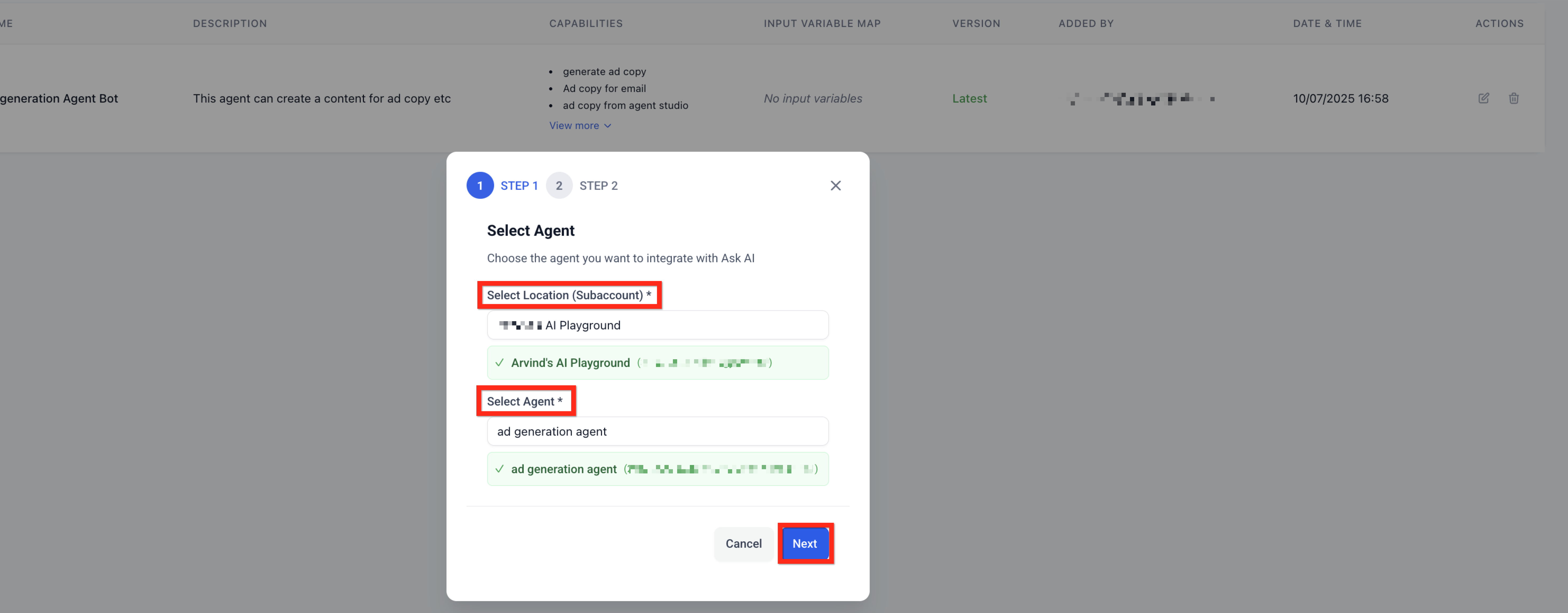
Step 4: Select the agent (Step 1 of the mapping flow). Confirm the account and the specific agent you're mapping.
Step 5: Configure the integration (Step 2 of the mapping flow). Give the agent a clear name and write a plain-language description of what it does, along with its key skills — for example, "Creates ad copy and emails contacts." AskAI compares every user request against this description to decide when to hand off to this agent, so be specific here. Vague descriptions lead to missed or incorrect matches.
Step 6: Map your variables (Step 3 of the mapping flow). For every variable your agent needs, choose one of two options:
Enter a fixed value the agent should always use, or
Mark it "Ask at runtime," so AskAI collects that value from the user naturally, mid-conversation, before running the agent.
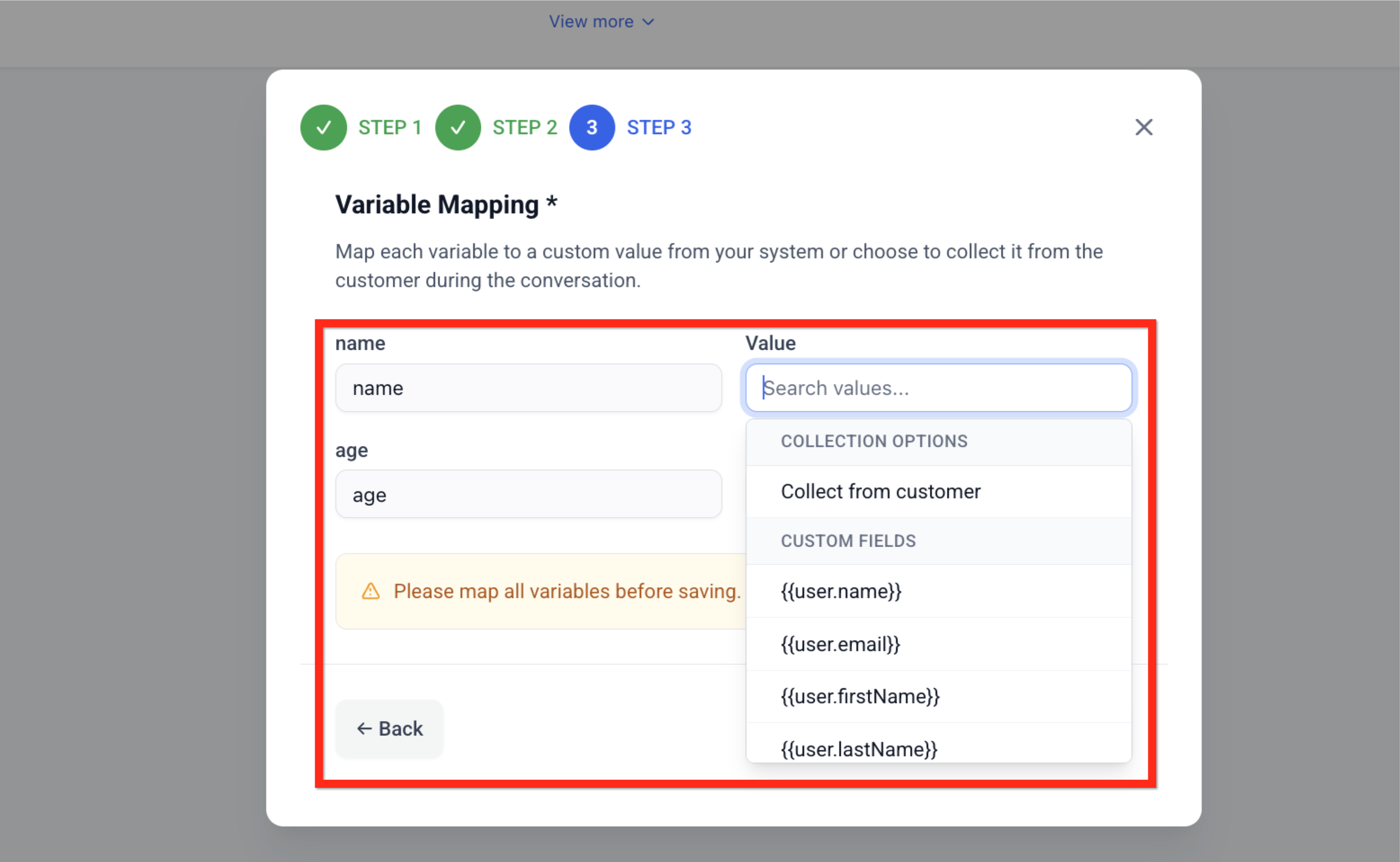
You won't be able to save the mapping until every variable has one of these two settings applied.
Step 7: Save and test. Save the mapping, then open an AskAI chat and type a request that matches the agent's description (e.g., "Create ad copy for Jane Doe"). You should see the chat respond with something like "Running [Agent Name]…" followed by the agent's output.
Writing Descriptions AskAI Can Actually Match On
The single biggest factor in whether this works well is the Agent Description you write in Step 5. AskAI isn't matching keywords — it's evaluating the user's request against your description to judge fit. A description like "Handles marketing tasks" is too broad and risks either over-triggering or never triggering. A description like "Creates ad copy and emails contacts for real estate listings" gives AskAI something concrete to match against.
What You Can Build Behind the Scenes
Because AskAI is just the trigger, the actual work happening once an agent fires can be as sophisticated as the agent itself. Agent Studio's drag-and-drop builder supports a few different node types you can combine inside a single agent:
Tool nodes — connect to web search, external APIs, a knowledge base, or other outside systems so the agent can pull in real information rather than just generating text.
Generative nodes — use an LLM prompt to produce copy, summaries, or images as part of the workflow.
Capture nodes — collect structured input from the user, whether that's free text or a set of choices, and feed it into the next step.
You design the agent once inside Agent Studio, combining whichever of these nodes the task requires, and then AskAI can call the whole thing whenever a matching request comes in. This is worth knowing before you write your Agent Description in Step 5 — the more accurately that description reflects everything the agent actually does end to end, the better AskAI's matching will be.
Common Mapping Mistakes to Avoid
A few issues account for most failed or inconsistent triggers:
Descriptions that are too generic. "Helps with marketing" won't give AskAI enough to distinguish this agent from any other marketing-adjacent one you've mapped. Be as concrete as the example in Step 5.
Leaving variables unmapped. The mapping won't save until every variable has either a fixed value or an "Ask at runtime" setting — if you're stuck on save, this is usually why.
Mapping an agent still in Staging. Only Production agents are selectable. If your agent isn't showing up in the mapping list, check its lifecycle stage first.
Overlapping descriptions across multiple agents. If two mapped agents have similar descriptions, AskAI has to guess between them. Keep descriptions distinct enough that there's a clear best match for any given request.
Frequently Asked Questions
Can I map more than one agent to AskAI?
Yes. AskAI evaluates every mapped agent's description and selects the best match for each request.
What happens if no mapped agent fits the request?
AskAI simply responds using its own built-in capabilities — nothing breaks, and no agent runs unnecessarily.
Does the mapped agent run its Staging or Production version?
Only the Production version. If you update the agent, make your changes in Staging and promote to Production — AskAI automatically picks up the new version without needing to be remapped.
Is there a limit on how many variables an agent can have?
No hard limit, though simpler agents with fewer variables tend to respond faster.
Do runtime variable questions match my brand's look and feel?
Yes — when AskAI asks a user for a missing value at runtime, that prompt inherits your account's existing chat styling.
How do I check whether a mapped agent is actually performing well?
Review the agent's run logs in Agent Studio alongside your AskAI chat history to see how often it's triggered and how it's performing.
Ready to connect your first agent to chat? Head to app.ajaxunion.com to set up your AskAI mapping, or visit https://martechsupport.com/home for more guides on getting the most out of your AI Agents.
