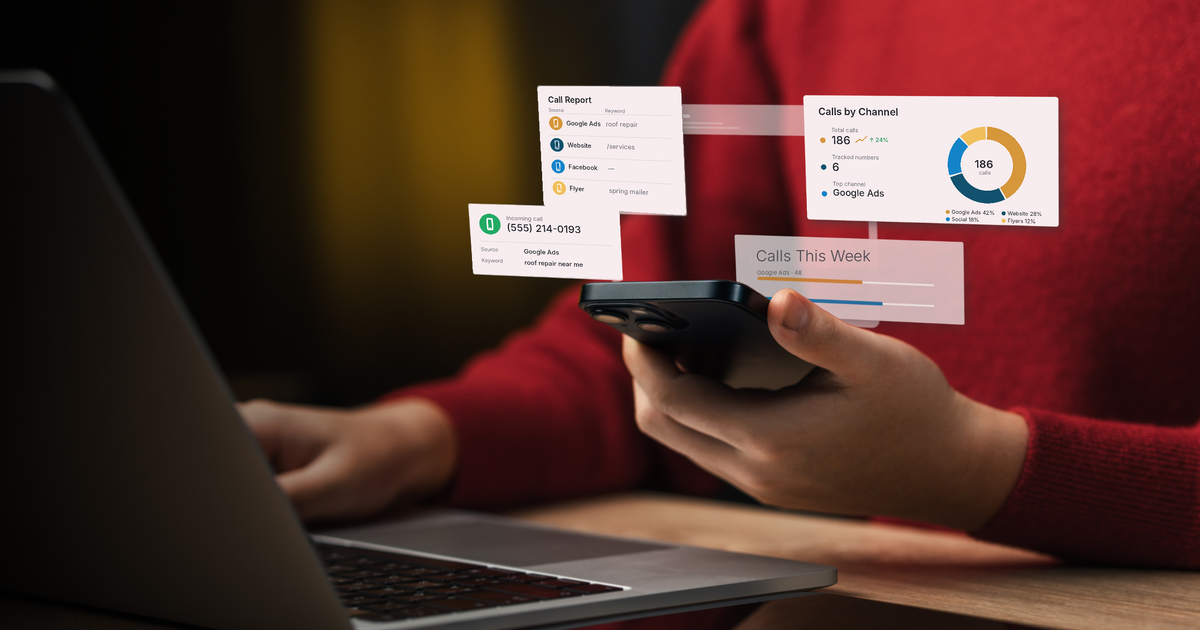
How to Track Which Marketing Channels Make Your Phone Ring
If you run ads, post on social media and keep a website, you've probably wondered which of them actually brings in calls. Without call tracking, every call looks the same, and you end up guessing where to spend next month's budget.
MarTech by Ajax Union solves this with number pools. A number pool shows a different phone number to visitors depending on how they found you. When someone calls that number, the call is linked back to the ad, page or keyword that brought them in. This guide shows you how to set one up.
How Number Pools Work
A number pool is a small group of tracking numbers. When a visitor lands on your website, a short piece of code swaps your regular phone number for one of the tracking numbers. Calls to that number still ring through to your business, but app.ajaxunion.com records where the caller came from.
The result: a call report that shows the source, and even the search keyword, behind each call.
Before You Start
Know your main business number. Calls to the tracking numbers get forwarded here. It must be an outside number, not one you bought inside app.ajaxunion.com, or the calls can loop.
Plan for cost. Each tracking number has a monthly rental fee, a pool needs at least four numbers, and call minutes are billed separately. Ask our team about current rates.
Step 1: Create a Number Pool
Log in at app.ajaxunion.com.
Click Settings, then Phone System, then open the Phone numbers tab.
Open the + Add Number dropdown on the right and click Add Number Pool.
Choose Visitors Activity. This is the option for tracking website visitors.
Choose which visitors to track. All visitors is the recommended choice. (If you pick PPC search, the number only swaps for people arriving from a paid ad.) Click Next: Create Pool.
Step 2: Configure the Pool
Number name: give the pool a name you'll recognize, such as Website Call Tracking.
Pool size: choose how many tracking numbers to include. The minimum is four. Busier sites need more numbers so each visitor can see a unique one.
Forwarding number: enter the number where you want calls to ring.
Swapping number: enter the number currently shown on your website. This is the number the code will replace. It can be the same as your forwarding number.
Pass call number as caller ID: turn this on if you want to see the tracking number when a call comes in, or leave it off to see the caller's own number.
Tick the box to confirm you're adding the new numbers, then click Next: Choose Numbers.
Step 3: Choose Your Tracking Numbers
Pick from local numbers in your forwarding number's area code, toll-free numbers, or numbers from any area code you enter. Local numbers usually feel most familiar to callers. Then click Next: Number Features.
Step 4: Set Up Call Features and Activate
Whisper message: a short message only you hear when you answer, such as "Call from website." It tells you where the call came from before you say hello.
Call recording: turn on recording if you want it, and set the message callers hear, such as "This call may be recorded for quality purposes." Recording consent rules vary by location, so check what applies to you.
Click Activate Number.
If several people on your team should get these calls, you can set the pool to ring up to six team members at once in its settings.
Step 5: Add the Tracking Code to Your Website
Go back to Number Pools, click the three-dot menu next to your pool, and choose Number Pool Info.
Copy the Normal Snippet Code.
Go to Sites and open Funnels or Websites.
Open the site, click the Settings tab, and paste the code at the bottom of the Body Tracking code field.
Click Save. Your phone number will now swap across the whole site.
If you only want the number to swap on one page, open that page in the builder, click the tracking code icon, and paste the code under Footer Tracking instead.
One detail matters here: if you use a clickable call button, write the number in the button's link exactly the same way as the number shown on the page. If the formats don't match, the visible number may swap while the button doesn't.
Step 6: Test the Number Swap
Open a private (incognito) browser window, go to your website, and check that a tracking number appears in place of your regular number. Then call it to make sure it rings through.
Step 7: Track Keywords and Read Your Results
To see the exact search keyword behind each call, add ?keyword={keyword} to the end of your Google Ads landing page URLs. For example, yoursite.com/landing-page becomes yoursite.com/landing-page/?keyword={keyword}.
Then go to Reporting → Call Report in app.ajaxunion.com. The keyword column shows what each caller searched, and you can open any contact to see the pages they visited before calling.
What About Offline Marketing?
Number pools track website visitors. For flyers, yard signs, vehicle wraps or direct mail, give each campaign its own dedicated phone number instead. Name each number after the campaign, and every call to it is automatically credited to that channel.
Spend Where the Calls Come From
Once you know which channels make your phone ring, budgeting gets much easier. You can put more into what works, cut what doesn't, and stop guessing.
Want to see MarTech in action? Book a live demo and our team will walk you through it.
