SMS & Email Marketing
Turn texts and emails into your best growth channel — templates, newsletters, and reactivation campaigns that keep your list warm and engaged.

How to Turn Your Blog Into Content You Never Have to Repost by Hand
You publish a blog post. Now it needs to go into a newsletter, get scheduled on social media, and maybe show up on another site entirely. Doing that by hand, for every single post, is the kind of task that quietly eats an afternoon a week — and it's exactly the kind of task an RSS feed is built to remove from your plate.
This guide covers what your blog's RSS feed actually is, where to find it, and the different ways to put it to work once you have it.
What an RSS Feed Actually Is
RSS stands for Really Simple Syndication — an automatically generated file that lists your published blog posts in a standardized, machine-readable format. Think of it as a live table of contents for your blog that other tools can read directly, rather than something a person browses. Once you have the feed's URL, any tool built to read RSS can pull your latest posts the moment they go live, with no manual copying involved.
Only published posts show up in the feed — drafts and unpublished content stay private and never appear there, which is exactly what you want.
Where to Find Your Feed URL
Getting your feed link takes a few clicks:
Go to Sites > Blogs.
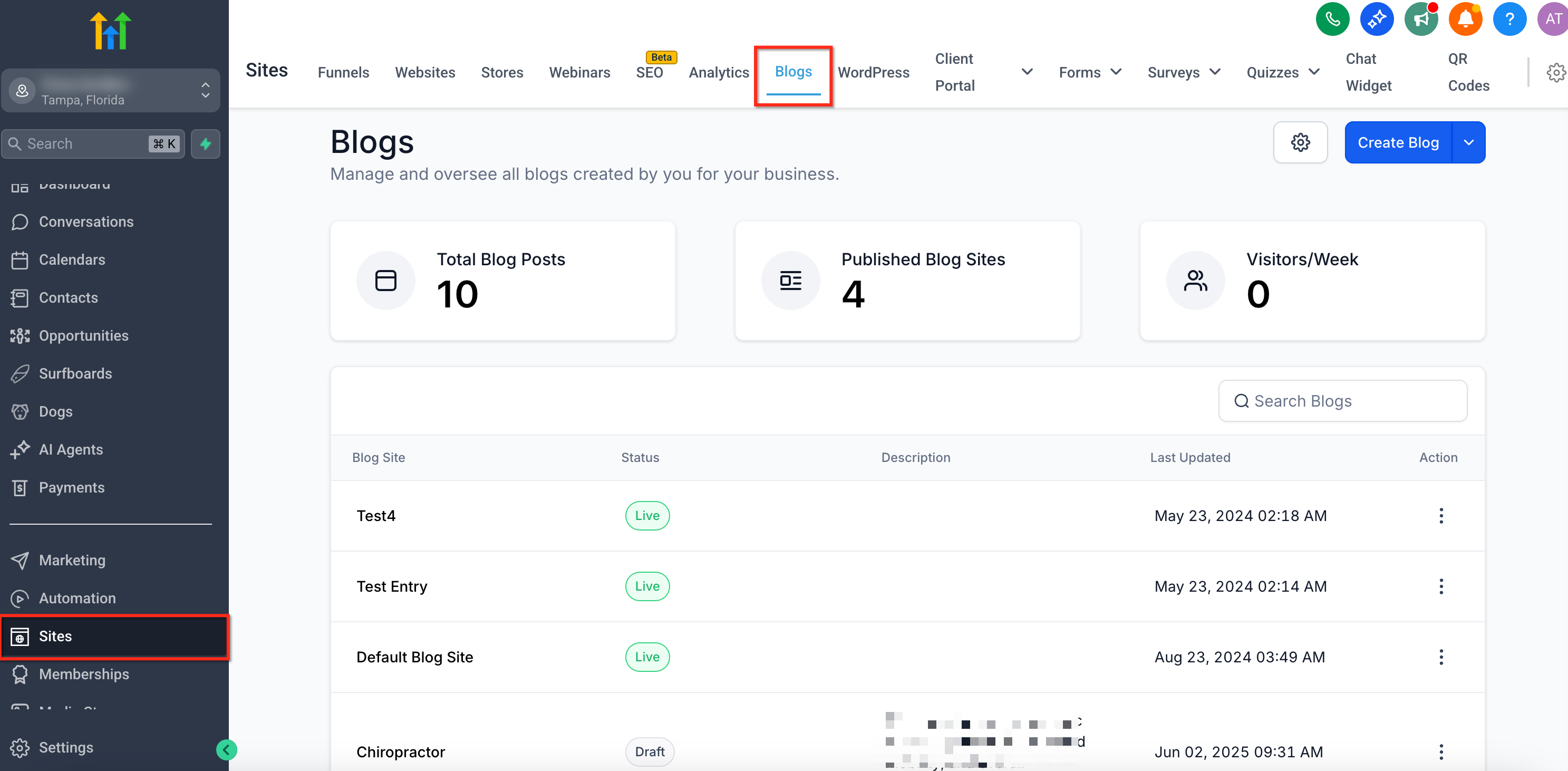
Click the gear-shaped Settings icon and open the RSS section.
Click Add RSS Feed, then give it a name, select which blog it should pull from, and set how many posts it should include.
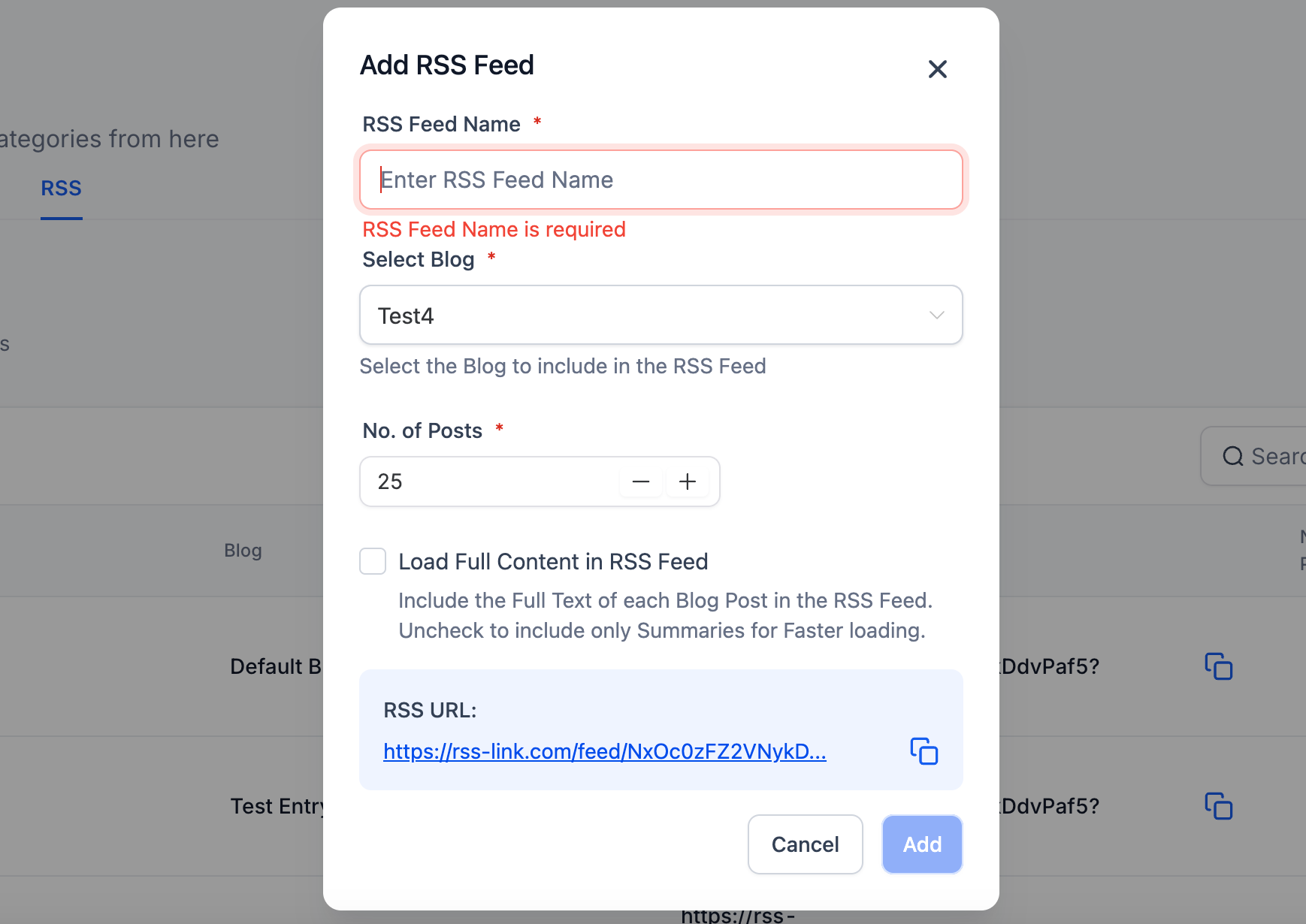
Choose whether you want the full post content included or just an excerpt.
Copy the generated RSS URL.
That URL is what you'll paste into whatever tool you want pulling from it. One useful detail: if you go back later and change the dropdown option on that feed, it doesn't retroactively break a URL you already copied and are using elsewhere — that existing link keeps working as originally configured.
Using It to Auto-Email New Posts
The most common use of a blog's RSS feed is turning new posts into an automatic newsletter, without opening the email builder every time you publish. Inside a campaign, add an RSS Header and/or RSS Items element to the email body, then paste in your feed URL. From there:
RSS Header pulls in feed-level details like the blog's title, description, and last-updated date.
RSS Items pulls in the individual posts themselves, and you choose how much of each one shows: just the title, an excerpt, an excerpt with an image, or the full content.
The Custom option gives you the most control — pick exactly which fields (title, excerpt, author, link) appear and how they're laid out.
Once it's set up and scheduled, any post published between the time you schedule the campaign and when it actually sends gets pulled in automatically.
Using It Anywhere Else Content Needs to Live
The same feed URL isn't limited to email. Plenty of website builders, CMS platforms, and content widgets can display a live list of posts from an RSS source — so the same feed that powers your newsletter can also keep a widget on a different site updated, or feed your latest posts into another tool entirely, without you touching either system by hand once it's connected.
A Few Things Worth Knowing
If your feed doesn't seem to be returning anything, first confirm the blog page or blog funnel step is actually published and live, and that the domain is properly connected. An unpublished blog has nothing to feed.
If the content in an email shows raw HTML tags instead of formatted text, the fix is almost always the same: use the custom RSS content variable with triple braces (so the HTML renders as HTML) rather than the default version, which escapes it into plain text.
Changing how many posts a feed pulls, or switching between full content and excerpts, only affects that specific feed going forward — it won't disturb a URL you've already deployed elsewhere.
Frequently Asked Questions
Will unpublished or draft posts show up in my RSS feed? No. Only published posts appear — drafts stay private and are never exposed through the feed URL.
Can I use the same feed for both email and social scheduling? Yes. The feed URL itself doesn't change based on where you use it — you can plug the same one into an email RSS campaign and a separate social scheduling tool.
My email shows the post content with visible HTML tags instead of formatted text. What's wrong? Use the triple-brace version of the content variable in a Custom RSS element instead of the default one, which escapes HTML characters into plain text.
If I edit my feed settings later, does it break links I've already shared? No. Adjusting the settings on a feed doesn't retroactively affect a URL you already copied and are using — that existing link keeps working as it was originally set up.
Do I need a developer to set any of this up? No. Creating the feed, copying the URL, and dropping it into an email or another platform's RSS widget are all click-based steps with no code involved.
Set the feed up once, and every new post you publish quietly finds its way into your newsletter, your social calendar, or wherever else you've pointed it — without you lifting a finger the second time.
Log in at app.ajaxunion.com, open Sites > Blogs, and grab your RSS feed URL to try plugging it into your next email campaign. For more guides on getting the most from your Ajax Union MarTech account, visit https://martechsupport.com/blog.
